

Why Manual Transcription Is a Productivity Trap
Manually reviewing hour-long Zoom calls to extract decisions, action items, or ownership is not just time-consuming—it’s cognitively expensive and error-prone. Research from UC Irvine shows knowledge workers lose 23 minutes of focus recovering from each interruption; rewatching recordings compounds that cost. Worse, unstructured audio yields no searchability: you cannot find “budget approval timeline” without scanning 47 minutes of playback.
The Real Bottleneck Isn’t Tech—It’s Workflow Design
Most teams default to saving raw MP4s or relying on Zoom’s basic transcript—which lacks speaker attribution unless participants join with authenticated accounts and proper naming. That creates ambiguity: “He said the deadline moved” becomes useless without knowing *who* “he” is. Speaker diarization—the technical term for distinguishing voices—isn’t optional. It’s the foundation of accountability.
“Speaker-aware transcription isn’t a luxury—it’s the minimum viable fidelity for collaborative knowledge work. Tools that skip diarization force humans to reconstruct context, defeating automation’s core purpose: reducing cognitive load, not shifting it.”
Tool Comparison: Accuracy, Speed & Integration Reality
| Tool | Speaker Labeling | Searchable Text | Zoom Native? | Time to Usable Notes | Key Limitation |
|---|---|---|---|---|---|
| Zoom AI Companion (Pro+) | ✅ Yes (requires Zoom account + display name) | ✅ Full-text, in-app | ✅ Fully native | 5–8 min | Limited editing; no custom vocabulary |
| Fireflies.ai | ✅ Yes (voice clustering + name matching) | ✅ Yes, with tags & highlights | ⚠️ Requires browser extension or calendar sync | 6–12 min | Free tier caps 800 mins/month |
| Notta | ✅ Yes (with optional manual correction) | ✅ Yes, with phrase-level search | ⚠️ Upload-based only | 9–15 min | No live transcription during meetings |
Debunking the “Just Watch It Again” Fallacy
A widespread but damaging heuristic claims, “If it’s important, I’ll remember—or just rewatch.” This ignores two immutable facts: first, human auditory memory decays by 50% after 20 seconds without reinforcement; second, rewatching consumes linear time with zero compounding return. Unlike text, video offers no skimming, no Ctrl+F, no version history. The superior approach isn’t more attention—it’s structured retrieval. Speaker-labeled, searchable transcripts convert ephemeral speech into durable, indexable knowledge assets.
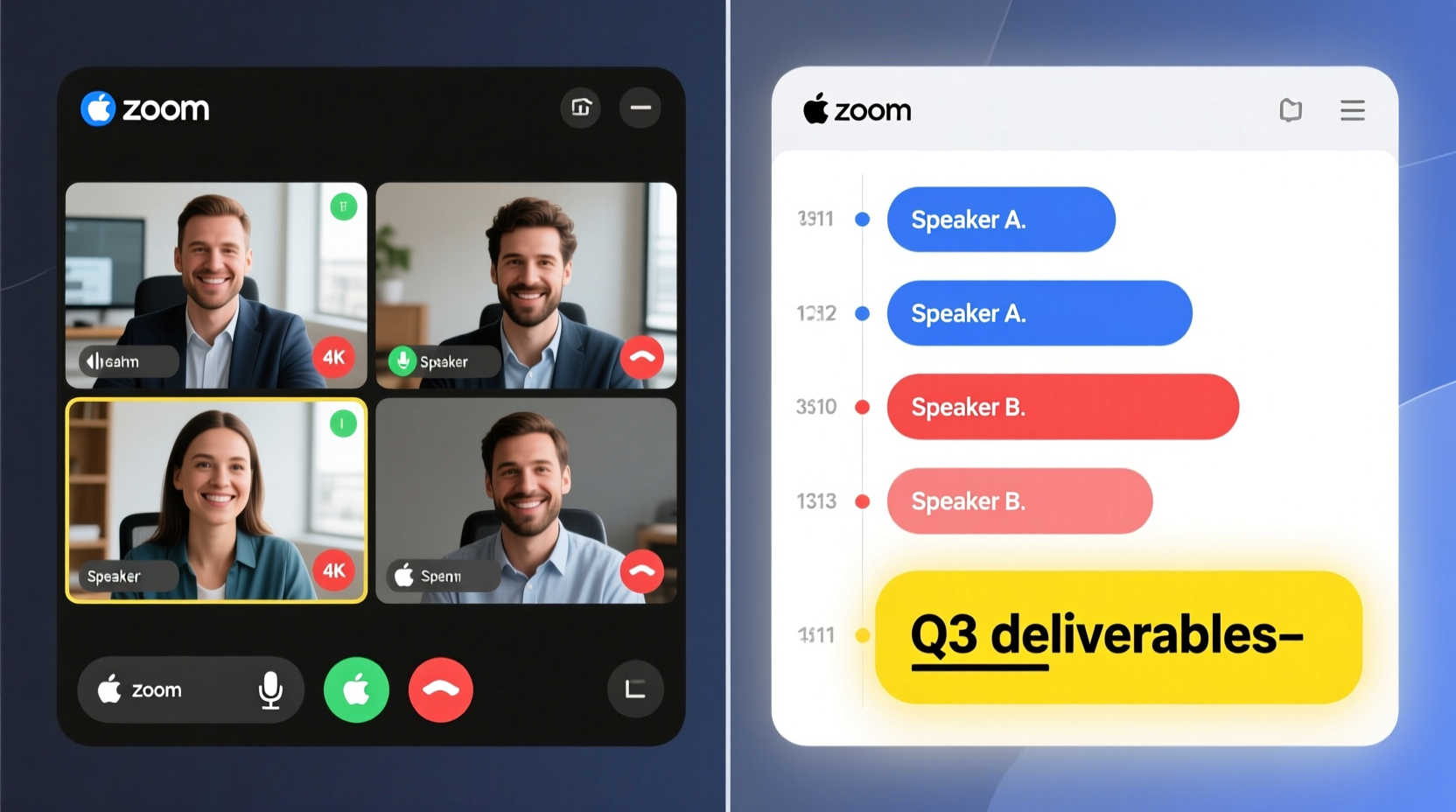
Implementation: Your First 10-Minute Setup
- ✅ Enable Zoom Cloud Recording: Settings > Recording > Toggle “Record to the Cloud” and “Audio Transcript”
- ✅ Activate AI Companion: Account > AI Companion > Enable for Meetings & Recordings
- ✅ Standardize Display Names: Require team members to use “First Last” in Zoom profiles—not “JohnD,” “jdoe,” or “iPhone.”
- 💡 Add Smart Search Terms: In Zoom’s transcript viewer, click “Add Keyword” to flag recurring terms (e.g., “SLA,” “compliance,” “beta launch”) for one-click filtering.
- ⚠️ Avoid “Auto-Join Audio” traps: If participants join via phone or unsupported VoIP, speaker diarization accuracy drops sharply—encourage computer audio only for critical sessions.
When to Escalate Beyond Native Tools
Zoom’s AI Companion excels for internal, scheduled meetings with prepared speakers. But for client-facing calls with heavy jargon, accents, or overlapping dialogue, augment with custom vocabulary models (via Fireflies’ glossary feature) or post-hoc editing workflows (Notta’s sentence-level correction). Never rely solely on real-time captions—they lack context, speaker ID, and search structure. The goal isn’t speed alone; it’s retrievable clarity.
Everything You Need to Know
Can I get speaker labels if my team uses Zoom Basic?
No—speaker diarization requires Zoom Pro or higher, plus cloud recording enabled. Basic users only receive unattributed transcripts. Upgrade or use Fireflies.ai with calendar sync as a workaround.
Why do some names show as “Speaker 1” even when display names are set?
This occurs when participants join before the host enables recording, or when audio sources are inconsistent (e.g., switching mics mid-call). Always start recording *before* admitting attendees—and enforce mic discipline.
Is my transcript data private? Can Zoom or third parties read it?
Zoom AI Companion data is encrypted and not used to train public models. Fireflies.ai allows enterprise-grade data residency controls; Notta offers GDPR-compliant processing. Avoid free-tier tools that claim “improved accuracy through user data sharing.”
How do I turn transcripts into action items automatically?
Zoom AI Companion identifies action items and owners natively. Fireflies.ai adds “Smart Summaries” with assigned tasks. For deeper automation, connect transcripts to Notion via Zapier and trigger templates for follow-up emails or Jira tickets.




 浙公网安备
33010002000092号
 浙B2-20120091-4