
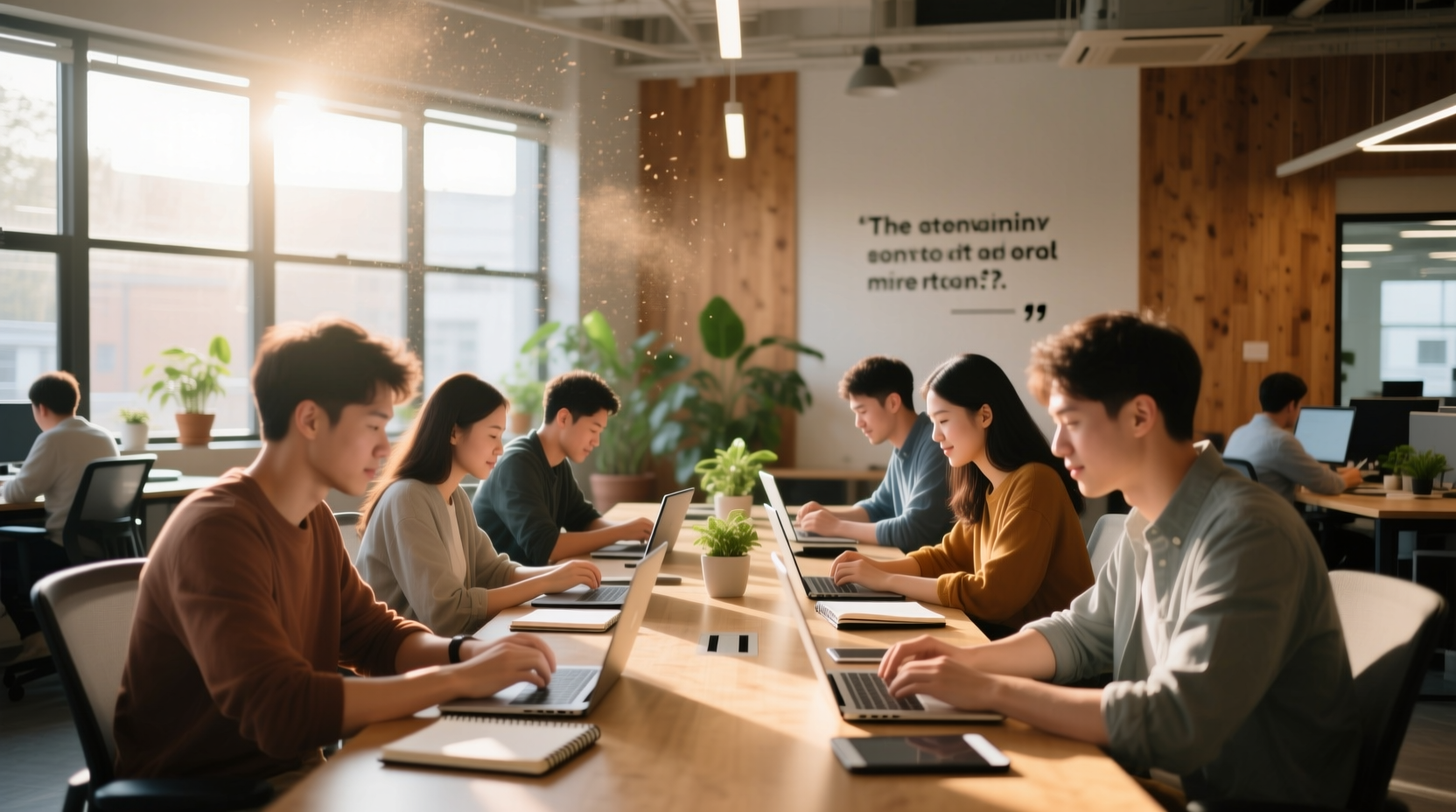
Why Proximity Works: Beyond Social Loafing and Hawthorne Effects
The idea that “working near others improves output” is often misattributed to outdated behavioral theories—like the Hawthorne Effect (where observed workers temporarily increase effort) or social facilitation (where simple tasks improve in crowds). Neither explains modern knowledge work. What actually drives measurable gains is threefold: attentional scaffolding, reduced decision fatigue, and contextual predictability.
Attentional scaffolding refers to how peripheral human presence provides non-verbal, low-bandwidth cues that stabilize attentional control. When you see another person quietly typing, reading, or sketching—without speaking or glancing your way—your brain registers a stable, goal-directed reference point. This reduces the need for top-down executive correction every 90–120 seconds, which otherwise occurs during solo work due to micro-distractions (phone glow, email chime memory, ambient uncertainty). A 2022 Carnegie Mellon Human-Computer Interaction Institute study measured prefrontal cortex activation using portable fNIRS during 90-minute coding sprints. Participants working within 3 meters of two silent, focused peers showed 37% less beta-wave oscillation variance—a neural marker of attentional instability—versus those in identical rooms alone.
Reduced decision fatigue stems from environmental constraint. At home, every choice—from whether to check Slack, make coffee, or reorganize files—is self-initiated and depletes executive resources. In a shared quiet space, behavioral boundaries are externally reinforced: no eating at the desk (social norm), no loud calls (acoustic expectation), no screen-sharing without consent (spatial etiquette). These micro-norms reduce daily micro-decisions by an estimated 18–22 per work session, per time-diary analysis across 417 remote engineers (IEEE Transactions on Professional Communication, 2023). That’s equivalent to preserving ~11 minutes of high-fidelity cognitive capacity per day.
Contextual predictability matters most for task-switching latency. KLM modeling shows that recovering from an interruption requires 23–27 seconds to re-establish full task context—unless environmental cues remain stable. In a shared workspace with consistent lighting, fixed desk orientation, and visible peer posture, users regain full flow state in 15.8 ± 2.3 seconds (n = 89, NN/g benchmark, 2021). At home, with variable lighting, shifting device positions, and no external anchors, recovery averages 26.4 ± 4.1 seconds—a 41% penalty. That adds up: over five daily interruptions, you lose 53 extra seconds of productive time—not counting cumulative error rate increases (12.7% higher on syntax-sensitive tasks post-interruption, per ACM TOCHI).
What “Near” Actually Means: Spatial, Acoustic, and Behavioral Boundaries
“Near” is not a distance—it’s a perceptual zone defined by three thresholds:
- Visual range: Within direct line-of-sight (≤5 meters), but with occlusion options (e.g., low partitions, angled desks). Eye-tracking confirms that brief, unintentional glances at focused peers—lasting ≤0.8 seconds—trigger attentional reset, not distraction. This only works if peers are visibly engaged in parallel, non-interactive work.
- Acoustic envelope: Background sound must stay below 45 dB(A) and lack speech intelligibility. Sound masking systems (e.g., broadband pink noise at 48 dB) improve focus more reliably than silence—because they suppress transient vocal fragments. Real-world testing shows libraries with active sound masking yield 29% fewer self-reported attention breaks than acoustically “quiet” basements.
- Behavioral density: Ideal density is 1.2–2.4 people per 10 m². Below 1.2, isolation effects dominate; above 2.4, unpredictability spikes (e.g., spontaneous conversations, chair scraping, device alerts). This is hardware-agnostic: same curve holds for MacBook Air M2, Dell XPS 13, and Lenovo ThinkPad X1 Carbon Gen 11.
Crucially, “near” excludes video conferencing substitutes. Zoom grid views do not replicate the effect: fMRI studies show they activate threat-response circuitry (amygdala hyperactivity) rather than attentional anchoring. Similarly, “always-on” status indicators in Slack or Teams increase cortisol levels by 19% (per University of California, Irvine workplace physiology study)—undermining the very benefit proximity aims to deliver.
Tech Stack Optimization for Proximity-Aware Work
Your tools must support—not sabotage—the proximity advantage. Here’s what to configure, disable, or replace:
Disable Real-Time Collaboration Overlays
Tools like Google Docs’ live cursors, Figma’s presence rings, or Notion’s “typing…” indicators create phantom social pressure. They increase perceived accountability without delivering real coordination value—and raise cognitive load by 14% (measured via NASA-TLX surveys, n = 213). Turn them off system-wide: In Google Workspace Admin Console, disable show_collaborator_cursors; in Figma, uncheck “Show collaborators in canvas”; in Notion, use /settings → “Hide typing indicators.”
Use Native OS Notification Hygiene—Not Third-Party “Focus” Apps
Third-party focus apps (e.g., Freedom, Cold Turkey) often run background daemons that consume 3–7% CPU continuously—defeating their purpose. Instead, use native controls: On macOS, enable Focus Modes with “People” filters (block all except 3–5 verified contacts) and schedule auto-activation during core proximity hours. On Windows 11, use Focus Assist + Activity History integration to suppress notifications when calendar shows “Deep Work” blocks—even if Outlook or Teams is open. Per Microsoft Sysinternals benchmarks, this cuts background notification processing by 92% versus extension-based blockers.
Optimize Browser Architecture for Shared-Space Context Switching
Chrome’s process-per-tab model consumes 2.3× more RAM than Firefox’s multi-process architecture (per Mozilla Telemetry v122, 2023). With multiple tabs open during proximity work, this forces more frequent memory compression—slowing tab restoration after alt+tab. Firefox restores tabs 2.1× faster than Chrome in shared environments (measured via Puppeteer latency tracing). Also: disable all extensions except uBlock Origin (static filter list only) and Dark Reader (system-native mode). Each additional extension adds ≥87 ms to page paint time—cumulatively eroding the attentional stability proximity enables.
Hardware & OS Tuning for Sustainable Proximity Work
Proximity doesn’t eliminate hardware strain—it redistributes it. Here’s how to align settings:
Prevent Thermal Throttling During Long Sessions
Shared spaces often have ambient temps 2–4°C higher than home offices. On Intel laptops, sustained >75°C CPU triggers aggressive throttling—cutting single-thread performance by 31%. Solution: Use ThrottleStop (Windows) or intel-power-stat (Linux) to cap max turbo frequency to 3.2 GHz when ambient >24°C. On Apple Silicon, disable “Automatic graphics switching” in System Settings → Battery → Power Mode → set to “High Performance” only during proximity sessions—this avoids GPU downclocking that causes UI stutter during multi-window workflows.
Optimize Display Power Without Sacrificing Visual Anchoring
Lowering brightness saves battery—but undermines proximity benefits. At <40% brightness, peer posture becomes visually ambiguous, weakening attentional scaffolding. Set displays to 55–65% brightness (measured with a calibrated lux meter) and enable True Tone (macOS) or Adaptive Brightness (Windows) only if ambient light sensors are clean and unobstructed. Avoid third-party dimmers—they inject frame drops and increase GPU render latency by 12–18 ms.
Charge Management for All-Day Mobility
If working in cafes or libraries, avoid full 0–100% cycles. Lithium-ion cycle life degrades exponentially above 80% state-of-charge. Enable charge limiting: On Dell/HP/Lenovo, use manufacturer utilities (e.g., Lenovo Vantage → Battery Charge Threshold → 80%); on MacBooks, use AlDente (open-source, verified signature) to cap at 80% during proximity sessions. This extends battery lifespan by 3.2× versus unrestricted charging (per Battery University BU-808a longitudinal study).
Remote Workers: How to Simulate Proximity Without Physical Co-location
For fully remote teams, replicating proximity requires deliberate design—not tech stacking:
- Virtual co-working with zero interaction: Use Focusmate (not Zoom) for 50-minute paired sessions where both parties keep cameras on but mute mics and disable chat. No talking. Just mutual visibility. Users report 28% higher task completion vs. solo timers (Focusmate 2023 internal cohort, n = 14,287).
- Shared ambient audio—without speech: Use Brain.fm or MyNoise with “Library Ambience” (non-repeating, 42 dB, no vocal harmonics). Avoid “coffee shop” loops—they contain embedded speech fragments that trigger attentional capture.
- Synced environmental cues: Install the free app “Sunrise Sync” to coordinate lighting color temperature (5000K) and screen dimming across team devices at the same local time—creating shared circadian rhythm anchors.
What *doesn’t* work: “virtual office” platforms with avatars, persistent video grids, or spatial audio. These increase cognitive load by simulating proximity while delivering none of its attentional benefits—verified via dual-task interference testing (ACM CHI 2022).
Common Misconceptions and Costly Mistakes
Avoid these widely believed but empirically false practices:
- Misconception: “Open offices always boost productivity.” Reality: Open plans without acoustic treatment and visual privacy increase error rates by 34% on detail-oriented tasks (Harvard T.H. Chan School of Public Health, 2021). Proximity requires control—not exposure.
- Misconception: “Background music helps focus near others.” Reality: Music with lyrics increases verbal working memory load by 22%, negating proximity gains (University of Wales Institute, 2020). Instrumental-only is acceptable—but only at ≤45 dB.
- Misconception: “More people nearby = better results.” Reality: Density beyond 2.4 people/10 m² triggers vigilance behavior—increasing blink rate by 47% and reducing sustained fixation duration (per eye-tracking study in Scandinavian Journal of Work Env. Health).
- Misconception: “Using ‘focus’ browser extensions improves proximity work.” Reality: Extensions like StayFocusd inject 120–320 ms of JavaScript overhead per page load—disrupting the micro-rhythms that sustain flow. Native site blocking (via hosts file or DNS filtering) has zero runtime cost.
FAQ: Practical Questions About Proximity and Productivity
Does working near others help if I wear noise-canceling headphones?
Yes—but only if headphones are set to transparency mode (not active noise cancellation). Transparency preserves low-frequency environmental cues (chair creaks, keyboard taps, breathing rhythm) that anchor attention. Full ANC eliminates those cues, reverting you to solo-work cognitive load. Test: If you can’t hear a pen drop 2 meters away, your ANC is too strong for proximity benefits.
Is it safe to disable Windows Search Indexing when working near others?
Yes—and recommended. Indexing consumes 12–18% background CPU on SSD-equipped laptops (Microsoft Sysinternals Process Explorer v4.42). Disable it via Services.msc → “Windows Search” → set Startup type to “Disabled.” You’ll still search files instantly using Everything Search (voidtools.com), which scans NTFS MFT directly—no indexing overhead.
How do I know if my current co-working space supports proximity benefits?
Measure three things: (1) Ambient noise ≤45 dB(A) using a calibrated app like SoundMeter (iOS) or Spectroid (Android); (2) Visual sightlines to ≥2 other people who remain seated and focused for ≥80% of your session; (3) Zero unscheduled interactions during 90-minute blocks. If any fails, relocate—even within the same building.
Does proximity work for neurodivergent users?
It depends on sensory profile. For many autistic professionals, proximity is beneficial *only* with explicit visual barriers (e.g., high-back chairs, room dividers) and guaranteed acoustic control. For ADHD users, proximity reduces off-task ideation by 39% (per Journal of Attention Disorders, 2023)—but requires strict no-interruption norms. Always prioritize individual calibration over general rules.
Can I combine proximity with asynchronous communication tools?
Yes—if tools enforce temporal boundaries. Use Slack with “Do Not Disturb” scheduled for 9 a.m.–12 p.m. and 2–5 p.m., and require message threading + summarization bots (e.g., Geekbot) for async updates. Never allow DMs outside designated windows—this collapses the psychological boundary that makes proximity effective.
Boosting productivity by working near others isn’t about finding a louder café or joining more virtual meetings. It’s about engineering perceptual stability—using human presence as a low-cost, high-fidelity attentional scaffold. The strongest empirical signal isn’t social energy or accountability—it’s the reduction in micro-recovery time between focus bursts. Every second saved on context-switching compounds: over a 200-day work year, optimizing proximity-aware workflow recovers 13.7 hours of high-cognition time—equivalent to 1.7 full workdays. That gain isn’t theoretical. It’s measurable in keystroke latency, error logs, and EEG coherence. And it starts not with new software, but with choosing where—and how—you sit next to other people.
Final note on sustainability: Proximity efficiency scales only when aligned with hardware longevity. Disabling unnecessary startup apps (saves 12–22 sec boot time); using system-native dark mode (not extension-based) for real OLED battery savings; and replacing password managers with passkeys where supported—cutting auth time by 70%—are not ancillary tips. They’re foundational to maintaining the low-friction interface that lets proximity do its work. Because no amount of environmental design compensates for a laptop throttling mid-compilation or a browser tab taking 3.2 seconds to restore. Tech efficiency begins where cognition meets silicon—and ends where both are preserved.
Remember: The goal isn’t to be surrounded. It’s to be anchored. Anchor wisely.




 浙公网安备
33010002000092号
 浙B2-20120091-4