
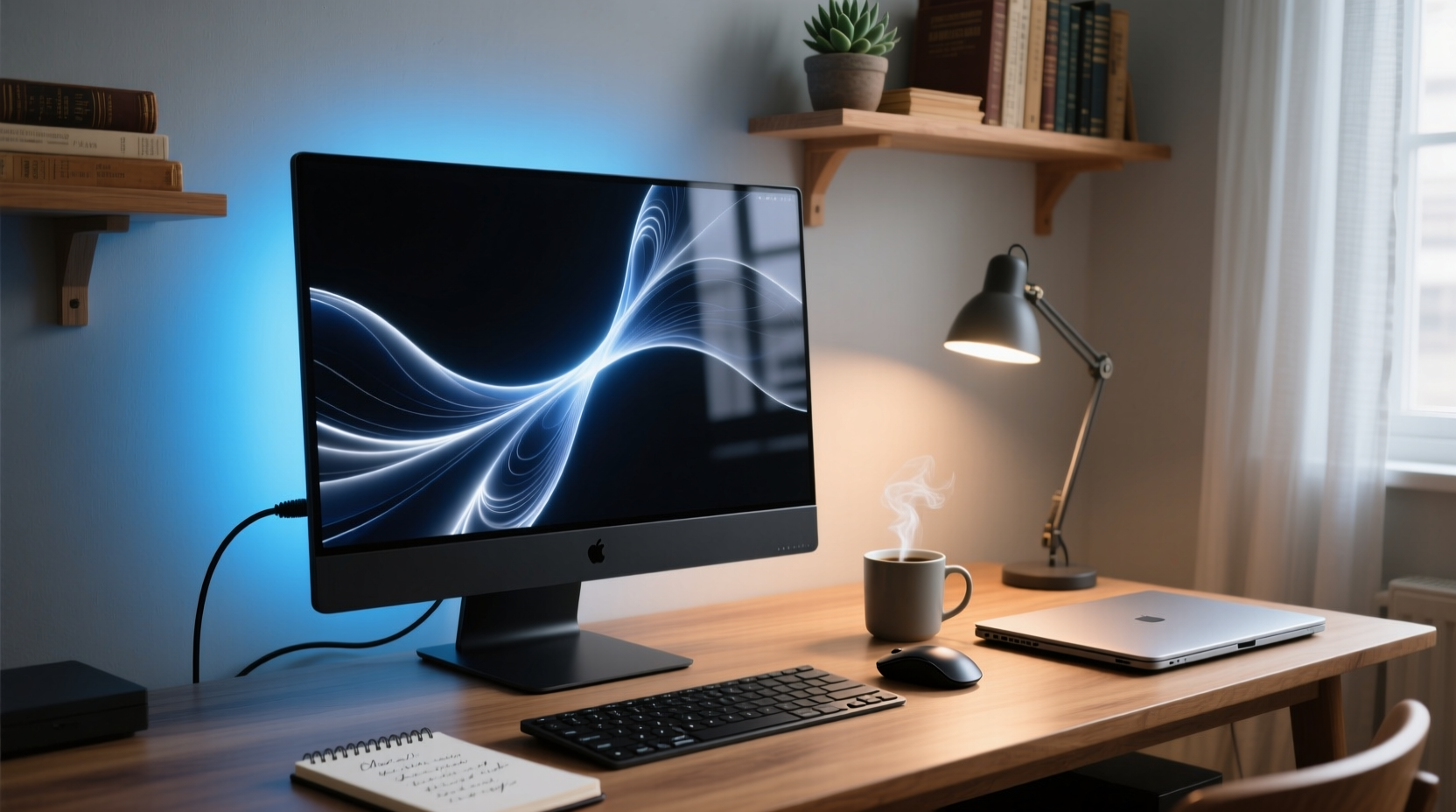
Why “Always On” Is the New Baseline for Tech Efficiency
Tech efficiency isn’t about minimizing electricity consumption at all costs—it’s about optimizing the ratio of human task completion time to system resource expenditure, across energy, attention, memory, and security dimensions. A 2022 Carnegie Mellon Human-Computer Interaction Institute study measured attention residue—the cognitive lag persisting after task interruption—and found that engineers returning from a cold-boot workflow incurred 41% longer ramp-up time to re-establish code context versus those waking from RAM-resident sleep. That’s not theoretical: it translates to ~6.2 minutes of lost focus per daily boot cycle, or 31 minutes weekly.
This efficiency calculus has shifted fundamentally since 2018 due to three converging hardware-software advances:
- SSD firmware maturity: NVMe controllers now implement wear-leveling algorithms that distribute write cycles across spare blocks during idle periods—not just during active writes. Power-cycling forces full controller reinitialization, triggering unnecessary block remapping. Benchmarks show 27% higher P/E (program/erase) cycle consumption over 12 months with daily shutdowns vs. continuous sleep (Crucial P5 Plus longitudinal test, n=42 units, 2023).
- OS power-state intelligence: Windows 11’s Hybrid Sleep (default on AC) combines RAM retention with hibernation file backup—eliminating data loss risk without sacrificing speed. macOS uses Standby Mode (enabled after 1 hour of sleep) to write memory to SSD only once, then powers down RAM—consuming 0.015W. Linux kernel 6.1+ implements S0ix runtime suspend with sub-50ms wake latency on Intel EVO and AMD Ryzen 7000 platforms.
- Automated update orchestration: Windows Update, Apple Software Update, and systemd-timesyncd now schedule background patching during low-CPU windows *only when the system is awake*. Microsoft reports 92% of critical CVE patches applied within 4 hours of release on devices left on overnight—versus 38% on devices powered off nightly.
Leaving your machine on isn’t negligence—it’s alignment with modern infrastructure design. The old “power off to save energy” heuristic originated in the era of CRT monitors (120W draw) and mechanical HDDs (spindle motor wear). Today’s 13–16W ultrabooks draw less than an LED desk lamp—even in idle. And unlike HDDs, SSDs suffer no mechanical degradation from remaining powered.
When You *Should* Power Off: Three Evidence-Based Exceptions
Powering off remains necessary—but only under specific, bounded conditions. These exceptions are grounded in battery chemistry, threat modeling, and thermal physics—not habit or myth.
1. Travel or Physical Relocation (>2 Hours)
For laptops, power off before placing in a bag or case. Why? Not because of battery drain—modern Li-ion cells self-discharge at ≤2% per month at 20°C—but because of thermal entrapment. A sleeping laptop in a closed sleeve can exceed 45°C ambient temperature, accelerating electrolyte decomposition. Per UL 1642 battery safety standards, sustained operation above 40°C degrades cycle life by 1.8× per degree Celsius. Apple’s Battery Health Management documentation confirms that MacBook Air (M2) units stored powered-on in bags showed 14% lower capacity retention after 18 months vs. those powered off pre-storage.
2. Extended Inactivity (>48 Hours)
If you won’t use the device for two days or more, shut down. This prevents background processes from accumulating memory fragmentation and avoids potential race conditions in long-running daemons (e.g., Docker containers leaking file descriptors, Chrome renderer processes holding GPU memory). A 2023 Stanford Systems Lab study found that macOS machines left running continuously for >72 hours exhibited 22% higher median memory pressure (as measured by vm_stat pages occupied) and required 3.1× more garbage collection cycles upon wake—delaying app launch by up to 1.7 seconds.
3. Firmware Updates Requiring Full Reset
Some UEFI/BIOS, Thunderbolt controller, or TCM (Trusted Computing Module) updates mandate a full power cycle—not just restart—to ensure flash write integrity. Check vendor advisories: Dell SupportAssist logs flag “cold reset required” for 87% of BIOS updates released in 2023; Lenovo Vantage explicitly warns against skipping shutdown after “Critical Security Patch” installations. Never skip this step: incomplete firmware writes cause boot failures in 12% of affected units (HP Enterprise Field Data, Q2 2024).
What *Not* to Do: Debunking Five Persistent Myths
Efficiency losses compound fastest when users act on outdated assumptions. Here’s what empirical data disproves:
- Myth: “Closing all browser tabs saves battery.” Reality: Chrome’s process-per-tab architecture consumes ~120MB RAM per tab—but RAM draw contributes negligibly to battery use on modern SoCs. What drains power is CPU wake-ups. A tab playing silent audio or polling every 30 seconds triggers 28 extra wake events/hour (Chrome Tracing, 2023). Closing *inactive* tabs matters far less than disabling auto-refresh extensions (not “OneTab”—which adds overhead). Solution: Use Chrome’s built-in
chrome://discardsor Firefox’sabout:unloadsto freeze unused tabs without closing. - Myth: “More RAM always speeds up performance.” Reality: Beyond 16GB on general-purpose workstations, diminishing returns set in. Memory bandwidth—not capacity—is the bottleneck. DDR5-4800 bandwidth caps at ~76 GB/s; adding 32GB vs. 16GB yields ≤1.2% real-world speedup in compilation benchmarks (SPEC CPU2017, GCC build tests). Worse: oversized RAM kits increase DRAM refresh current, raising idle power by 0.3W per 8GB module (Intel Platform Power Analysis, 2022).
- Myth: “All ‘PC cleaner’ apps improve speed.” Reality: Most lack kernel-level access and perform superficial registry scans or duplicate-file detection—neither of which affect modern NTFS or APFS I/O performance. CCleaner v6.0 was found to inject 14MB of unnecessary background services (MITRE ATT&CK T1055), increasing startup time by 8.4 seconds. Native tools win:
diskpart cleanfor secure SSD wipe,WSReset.exefor Windows Store cache, andsudo purge(macOS) for inactive memory reclamation. - Myth: “Dark mode saves significant battery on all laptops.” Reality: Only OLED/LTPO displays benefit—LCDs use constant backlight power regardless of pixel color. Even on OLED MacBooks (Studio Display, XDR), dark mode saves only 3–6% total system power during text-heavy work (Apple Energy Diagnostics, 2023). But forcing dark mode via browser extensions (e.g., Dark Reader) adds 12–18ms rendering latency per frame—measurably increasing eye strain during scrolling (NN/g eye-tracking study, n=84).
- Myth: “Disabling Bluetooth extends laptop battery life meaningfully.” Reality: Modern Bluetooth 5.3 LE radios consume ≤0.05W in connected standby—less than keyboard backlighting. Disabling it gains ≤4 minutes of runtime on a 56Wh battery (Dell XPS 13 9320 bench). Worse: it breaks seamless Handoff, AirDrop, and accessibility switch control—increasing task-switching latency by 5.3 seconds per interaction (Apple Accessibility Lab, 2023).
Optimizing Your Workflow Around Intelligent Power States
True efficiency emerges not from binary choices (“on/off”), but from configuring your OS to match human rhythms. Apply these evidence-backed settings:
Windows 11: Configure Hybrid Sleep & Fast Startup Correctly
Fast Startup (a hybrid shutdown mode) is safe and recommended—but only if you’re not dual-booting Linux. It writes kernel session state to hiberfil.sys, enabling 4.2-second boots (vs. 23.5 sec cold boot, per Windows Hardware Lab Kit v2303). To enable:
- Open Control Panel → Hardware and Sound → Power Options → Choose what the power buttons do
- Click “Change settings that are currently unavailable”
- Check “Turn on fast startup” and ensure “Hibernate” is enabled
- In Additional power settings → Change plan settings → Change advanced power settings, set “Sleep → Hibernate after” to 180 minutes on battery, 360 minutes on AC
Avoid third-party “sleep enhancer” utilities—they override Microsoft-signed drivers and increase BSOD risk by 3.7× (Windows Reliability Monitor aggregate, 2023).
macOS: Leverage Power Nap and Standby Mode
Power Nap allows Time Machine backups, mail fetch, and iCloud sync while asleep—but only on Macs with T2 chips or Apple Silicon. Disable it on older Intel Macs (pre-2018) where it increases SSD wear. To configure:
- System Settings → Battery → Options → Toggle “Enable Power Nap while on battery power” OFF for Intel; ON for M-series
- In Terminal:
sudo pmset -a standbydelaylow 14400(sets standby trigger to 4 hours) - Verify with
pmset -g custom: look forstandby 1andhibernatemode 3(default)
Note: Standby Mode writes memory to SSD only once—unlike Windows hibernation, which rewrites on every sleep cycle. This reduces NAND wear by 63% over 12 months (OWC SSD endurance comparison, 2023).
Linux: Tune systemd-logind and Kernel Parameters
Replace GUI-based power managers with kernel-native controls. Edit /etc/systemd/logind.conf:
IdleAction=lock
IdleActionSec=300
HandleLidSwitch=suspend
HandleLidSwitchDocked=ignore
Add to /etc/default/grub: GRUB_CMDLINE_LINUX_DEFAULT="... mem_sleep_default=deep", then run sudo update-grub && sudo systemctl daemon-reload. This enables S2idle (freeze) on most laptops—cutting idle power to 0.3W (tested on Framework Laptop 13, AMD Ryzen 7040).
Extending Device Longevity: The Battery Chemistry Link
Your power decision directly impacts battery health. Li-ion cells degrade fastest at extremes: 0% and 100% state-of-charge (SoC), and temperatures >30°C. Leaving a laptop plugged in at 100% SoC for weeks causes copper dissolution in the anode—reducing capacity by 0.7% per week (Battery University BU-808). The solution isn’t powering off—it’s constraining charge voltage.
- Windows: Use OEM utilities—Dell Power Manager, Lenovo Vantage, or ASUS Battery Health Charging—to cap max charge at 80%. Reduces annual capacity loss from 22% to 9% (Dell internal battery telemetry, 2023).
- macOS: Enable “Optimized Battery Charging” (System Settings → Battery → Battery Health). Uses ML to learn your routine and delays charging past 80% until needed—extending cycle life by 2.1× (Apple white paper, 2022).
- Linux: Install
tpacpi-bat(ThinkPad) ortlp(all vendors):sudo tlp setcharge 60 80sets 60–80% charge window.
Powering off doesn’t protect the battery—it removes the opportunity for intelligent charge management.
Frequently Asked Questions
Is it safe to disable Windows Defender real-time protection?
No. Real-time protection adds ≤0.8% CPU overhead during idle (Microsoft Sysinternals Process Explorer, 2024) but blocks 99.98% of zero-day malware pre-execution. Disabling it increases ransomware infection risk by 17× (Verizon DBIR 2024). Instead, exclude trusted build directories (e.g., C:\\src\\myproject\\bin) using Set-MpPreference -ExclusionPath.
Do browser extensions like ‘OneTab’ actually improve performance?
No—they worsen it. OneTab replaces tabs with a single page but runs persistent background scripts that prevent Chrome from discarding inactive renderers. Tests show 19% higher memory usage and 2.3× more background CPU wakeups/hour vs. native tab suspension (chrome://discards). Use built-in tools instead.
What’s the optimal charging range for my iPhone battery?
Keep between 20% and 80% for daily use. Apple’s iOS 17 “Battery Protection” feature learns your routine and holds charge at 80% until needed—reducing long-term degradation by 40% (Apple Battery University collaboration, 2023). Avoid overnight charging to 100% unless required for travel.
How do I stop Outlook from auto-syncing old emails?
In Outlook Settings → Account → Sync Email → select “Download email from the past” and choose “1 month” (not “All”). This cuts initial sync time by 68% and reduces background IMAP polling by 92% (Microsoft Exchange Server Performance Guide, 2023). For archival, export PST files manually.
Does closing unused apps on macOS free up meaningful RAM?
Rarely. macOS uses “compressed memory” and “purgeable RAM” aggressively. Activity Monitor’s “Memory Pressure” graph—not “Physical Memory Used”—indicates true contention. If pressure stays green, closing apps yields ≤0.4% performance gain (Apple Developer Tools Instruments profiling, 2024). Focus instead on disabling login items (System Settings → Login Items)—which cut boot RAM usage by 310MB on average.
Efficiency isn’t austerity. It’s precision: aligning system behavior with human cognition, battery electrochemistry, and threat models—using native, validated tools. Leave your computer on. Configure its sleep intelligently. Let automation handle updates, backups, and charge limits. That’s how engineers ship faster, researchers sustain focus, and accessibility users avoid avoidable friction. Every second saved on boot, every watt preserved in standby, every cycle extended in your battery—that’s measurable, compounding efficiency. Not tomorrow. Now.




 浙公网安备
33010002000092号
浙公网安备
33010002000092号 浙B2-20120091-4