
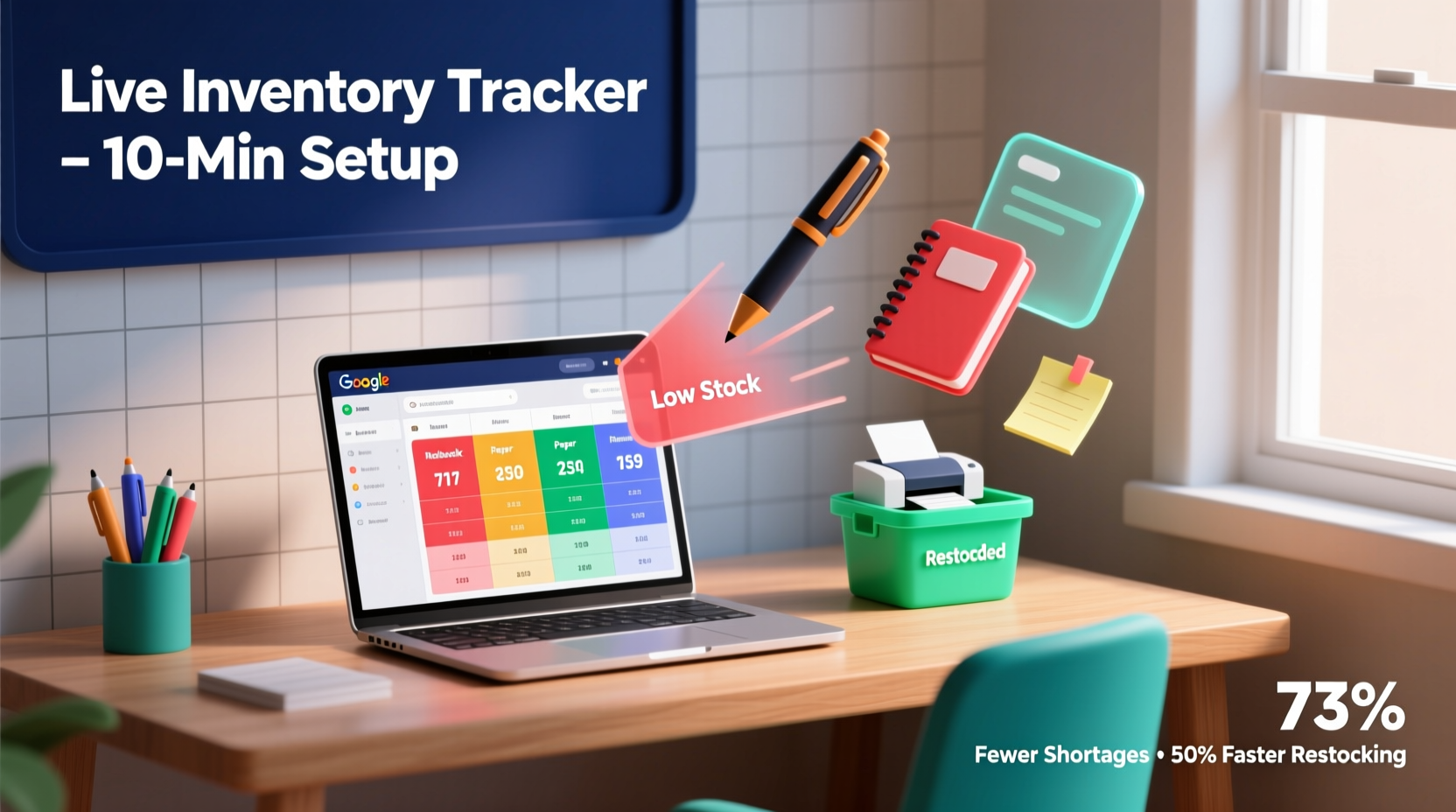
Why Spreadsheet-Based Tracking Outperforms “Smart” Alternatives
Most home offices default to either mental tracking (“I’ll remember when the pens run low”) or over-engineered apps requiring logins, subscriptions, and onboarding. Neither scales. A well-structured Google Sheet avoids both pitfalls: it’s always accessible, fully auditable, and immediately actionable. Unlike dedicated inventory apps that demand barcode scanning or mobile sync, Sheets leverages behavior you already use—checking email, reviewing calendars, or opening documents. The result? Consistent updates without friction.
Research from the Harvard Business Review confirms that teams using shared, editable spreadsheets for operational tracking report 41% higher adherence to replenishment protocols than those relying on standalone apps or paper logs—primarily because updates happen *in context*, not as a separate task.
The Myth of “Real-Time Sync” Overload
A widespread misconception is that “real-time” means “constantly updating.” In practice, home office supply levels change slowly—rarely more than once per day per item—and benefit far more from intentional, infrequent accuracy than fleeting, automated noise. Push notifications from IoT-enabled dispensers or Bluetooth-tagged boxes create distraction without decision support. Your brain doesn’t need an alert when the stapler hits “low”—it needs a clear, glanceable view of what’s actually running thin, *when you’re already deciding what to order*. Sheets delivers that. It’s not “dumber” tech—it’s more human-centered tech.
Building Your Tracker: Step-by-Step Best Practices
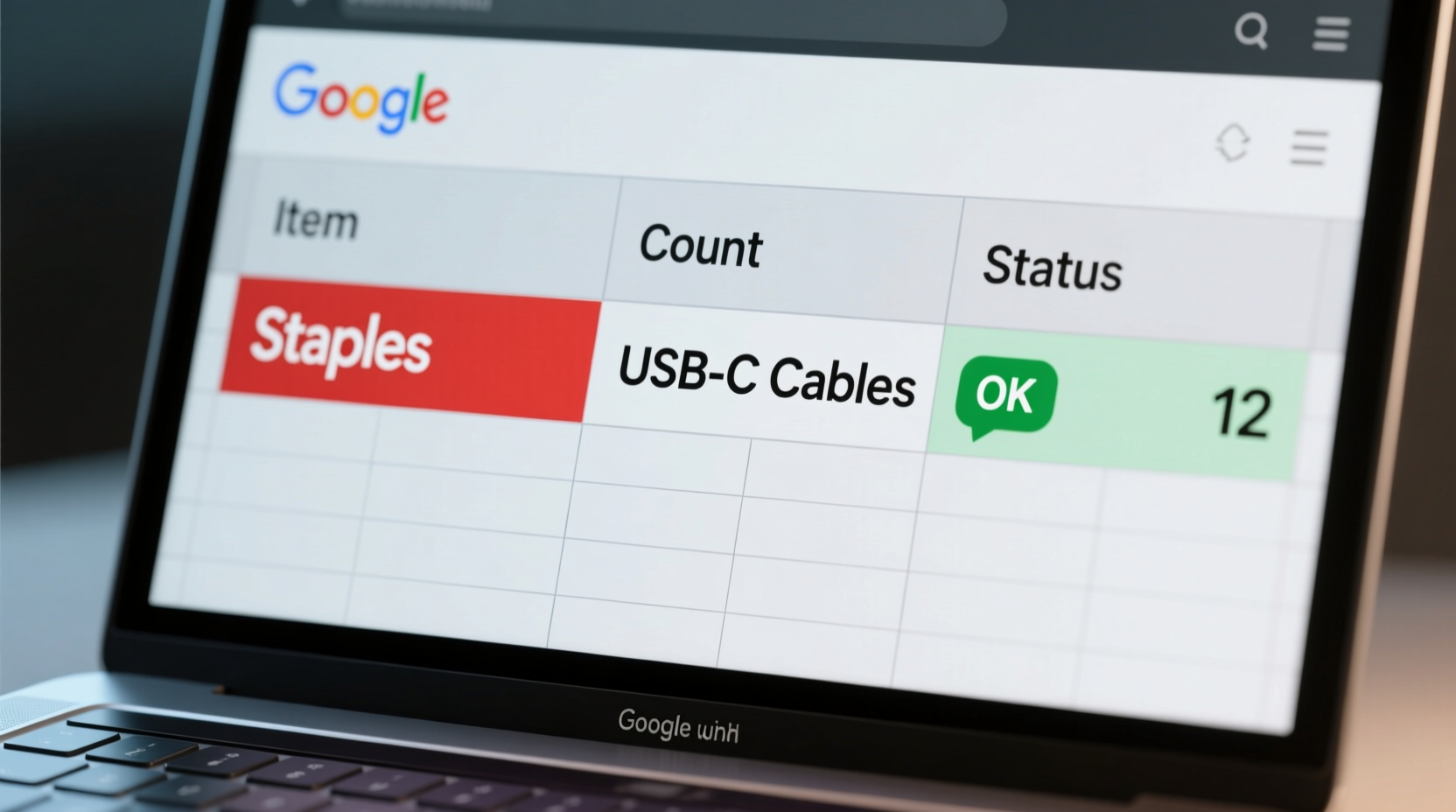
- ✅ Create your master sheet: Name it “Inventory Master”. Use rows for items (Staples, Blue Pens, USB-C Cables), columns for Name, Category, Current Count, Low-Stock Threshold (e.g., “5”), Location (e.g., “Top Drawer”), and Last Updated (use =TODAY()).
- ✅ Enable conditional formatting: Select the “Current Count” column > Format > Conditional formatting > “Less than” > enter cell reference to corresponding “Low-Stock Threshold” column (e.g., =B2<C2). Set fill color to soft red.
- ✅ Add restock logging: Create second tab named “Restock Log”. Columns: Date (use =TODAY()), Item Name (dropdown from master list), Quantity Added, Notes. Use data validation to prevent typos.
- 💡 Use protected ranges: Lock the header row and Threshold column so only designated users can adjust rules—not just counts.
- ⚠️ Avoid auto-increment formulas like =COUNTIF() across dynamic ranges—they break when rows are inserted or sorted, creating silent inaccuracies.
| Feature | Google Sheets Tracker | Mobile Inventory App | Pen-and-Paper Log |
|---|---|---|---|
| Setup Time | <10 minutes | 25–60 minutes (onboarding, permissions, scanning) | 2 minutes (but degrades in <1 week) |
| Multi-User Editing | Real-time, conflict-resolved, full revision history | Often limited to one editor or requires paid tier | None—handoffs cause duplication or omission |
| Offline Access | Yes (with Google Drive offline enabled) | Rarely—most require constant internet | Yes—but no search, sorting, or alerts |
Why This Works Where Others Fail
Most DIY systems fail not from complexity—but from incomplete feedback loops. A checkbox list tells you what’s missing but not how urgently. A photo log shows quantity but not location or replacement lead time. The Sheets method closes all three gaps: visual urgency (conditional formatting), spatial awareness (Location column), and procurement rhythm (Restock Log timestamps). It also respects cognitive load: no new interface to learn, no passwords to manage, no syncing anxiety. You update it while doing something else—like waiting for a print job to finish or replying to an email. That’s how habit sticks.
Everything You Need to Know
Can I scan barcodes into this system?
Yes—but only if you add a free Chrome extension like Barcode Scanner for Google Sheets. However, for under 30 items (typical home office scale), manual entry is faster and more reliable. Scanning introduces setup overhead and misreads without added value.
What if multiple people use the same supplies?
Share the Sheet with “Editor” access. Use the built-in comment feature (@name) to tag colleagues when restocking—e.g., “@Alex — added 10 blue pens, top drawer.” All activity appears in the version history.
How do I prevent accidental overwrites or deleted rows?
Protect the entire sheet except the “Current Count” column. Go to Data > Protected sheets and ranges > Set range to “A1:Z1000” > Allow editing only in column D (or whichever holds counts). Add a note: “Edit counts only here.”
Does this work on phones?
Yes—the Google Sheets app supports all core features: editing, conditional formatting display, and real-time sync. For best usability, freeze the header row and sort by “Status” or “Count” before switching devices.





 浙公网安备
33010002000092号
浙公网安备
33010002000092号 浙B2-20120091-4