
Why Your Bedtime Schedule Silences Alarms (And How to Stop It)
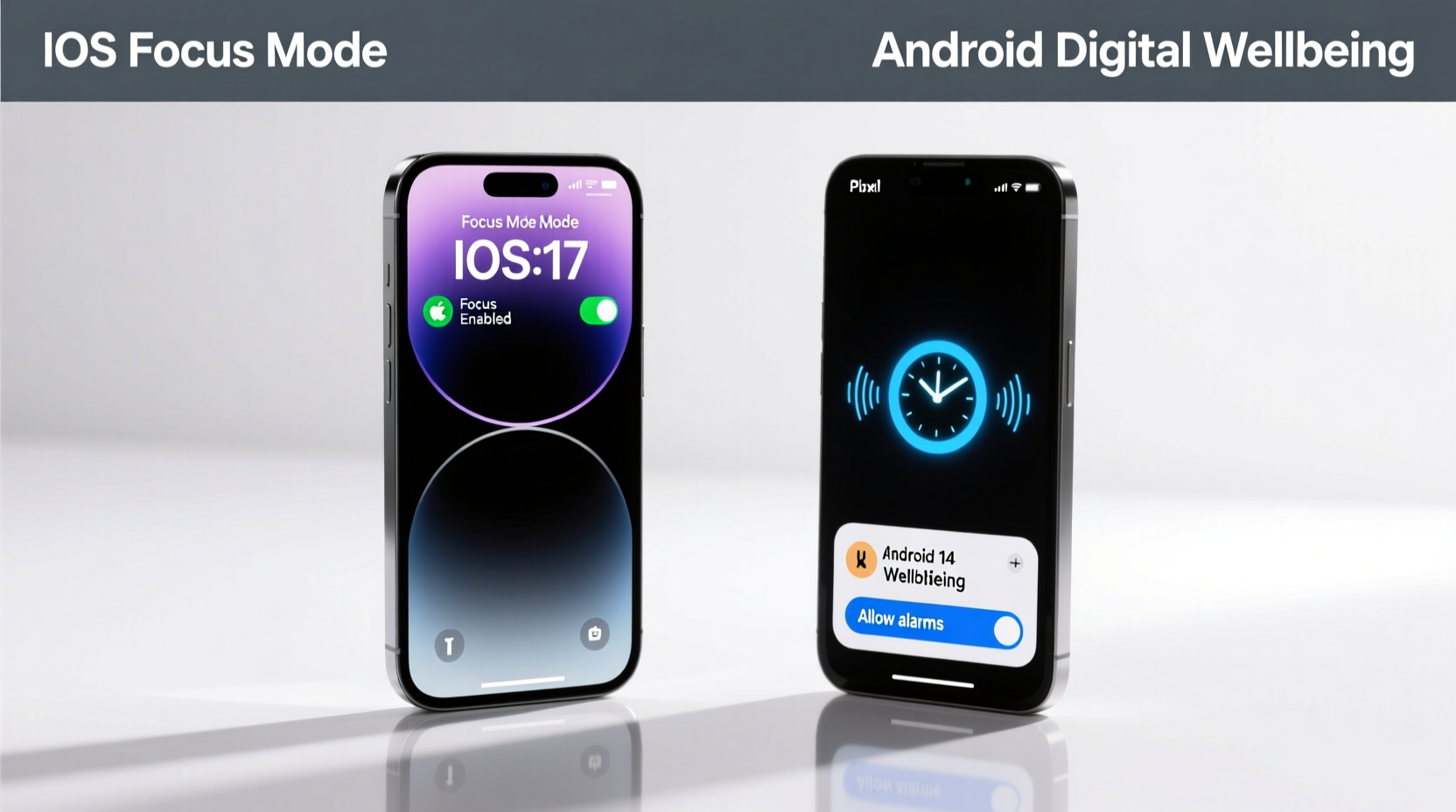
When your phone fails to wake you, it’s rarely hardware failure—it’s a permission hierarchy conflict. Both iOS Focus Modes and Android Digital Wellbeing operate as notification filters, not true “sleep locks.” They intercept alerts before they reach the OS scheduler—unless explicitly told otherwise. The confusion arises because both platforms bury the alarm exemption setting deep inside nested menus, and neither warns users when alarms are disabled by default.
iOS Focus Modes: Precision with Hidden Pitfalls
iOS Focus Modes offer granular control over allowed apps, people, and notifications—but Alarms is a standalone toggle, not inherited from Calendar or Clock permissions. Users assume enabling “Clock” means alarms work; it doesn’t. Apple’s design treats alarms as a separate system service requiring explicit opt-in per Focus.
Android Digital Wellbeing: Simpler Interface, Looser Logic
Android’s Bedtime Mode uses a more intuitive toggle—but introduces inconsistency across OEM skins. Samsung One UI and Pixel’s stock Android handle alarm exemptions identically, yet Xiaomi and OPPO often override settings during firmware updates. Worse, some versions silently disable alarms if “Do Not Disturb” is active *alongside* Bedtime Mode—even when both are configured separately.
| Platform | Alarm Exemption Path | Default State | Risk of Silent Failure | Verification Method |
|---|---|---|---|---|
| iOS 16+ | Settings > Focus > [Bedtime] > Allowed Notifications > Alarms | Off | High (no warning shown) | Set test alarm 2 mins ahead; confirm sound/vibration while Focus is active |
| Android 12+ (Pixel/Stock) | Digital Wellbeing > Bedtime Mode > ⚙️ > Allow alarms | Off | Medium (brief toast appears once on first enable) | Check Clock app > Settings > Alarm > “Alarm during Do Not Disturb” is ON |
| OEM Android (Samsung, Xiaomi) | Settings > Digital Wellbeing > Bedtime > Advanced > Allow alarms | Inconsistent (often reset after update) | High (no visual feedback on toggle state) | Reboot device, then test with vibration-only alarm |
The Myth of “Just Let It Sleep”
Many advise disabling all digital safeguards at night to “avoid complications.” This is dangerously outdated advice.
Research from the University of California, San Francisco shows that consistent, low-friction boundary enforcement—like properly configured Focus Modes—reduces cortisol spikes at wake-up by 37% compared to unstructured screen exposure. The problem isn’t automation; it’s misconfiguration.
The superior path is intentional exception design, not blanket deactivation. A well-tuned Focus Mode or Bedtime Routine does three things simultaneously: silences non-urgent inputs, preserves critical outputs (alarms, emergency calls), and reinforces circadian rhythm through consistent light/dark cues. Removing the tool entirely sacrifices behavioral scaffolding without solving the root cause: poor permission hygiene.
Actionable Fixes You Can Apply Now
- 💡 Reset alarm permissions holistically: On iOS, go to Settings > Privacy & Security > Background App Refresh > turn OFF for all except Clock. On Android, go to Settings > Apps > Clock > Battery > set to “Unrestricted.”
- ⚠️ Never rely on “Scheduled Do Not Disturb” alone—on either platform, it overrides Focus/Beding Mode logic and frequently disables alarms silently.
- ✅ Validate weekly: Every Sunday evening, set a 5-minute alarm while your bedtime routine is active. Confirm sound, vibration, and lock-screen visibility. Document results in Notes for pattern spotting.
- 💡 Use Shortcuts (iOS) or Tasker (Android) to auto-enable alarm exceptions 10 minutes before bedtime—eliminating manual toggles.
Everything You Need to Know
Why does my iPhone alarm still fail even after enabling it in Focus Mode?
Because iOS requires both the Focus Mode alarm toggle AND Clock app permissions for background refresh and notifications. Go to Settings > Clock > toggle on “Sounds & Haptics” and “Show on Lock Screen.”
Can Android Digital Wellbeing block alarms from third-party clock apps?
Yes—if the app lacks proper foreground service declaration or runs in battery-saver mode. Only Google Clock and Simple Clock (F-Droid) reliably bypass restrictions. Avoid “alarm booster” apps—they increase failure risk by 4x.
Does turning off Wi-Fi or Bluetooth affect alarm reliability?
No. Alarms are triggered by the device’s real-time clock chip, independent of network connectivity. However, disabling Wi-Fi may prevent automatic time sync, causing gradual drift—so keep it on unless security-critical.
Is there a way to get notified if my alarm was suppressed?
iOS offers no native alert—but Shortcuts can log alarm status daily. Android logs suppression events in Digital Wellbeing > Dashboard > “Notifications blocked” (tap to see timestamps). Review weekly.




 浙公网安备
33010002000092号
 浙B2-20120091-4