
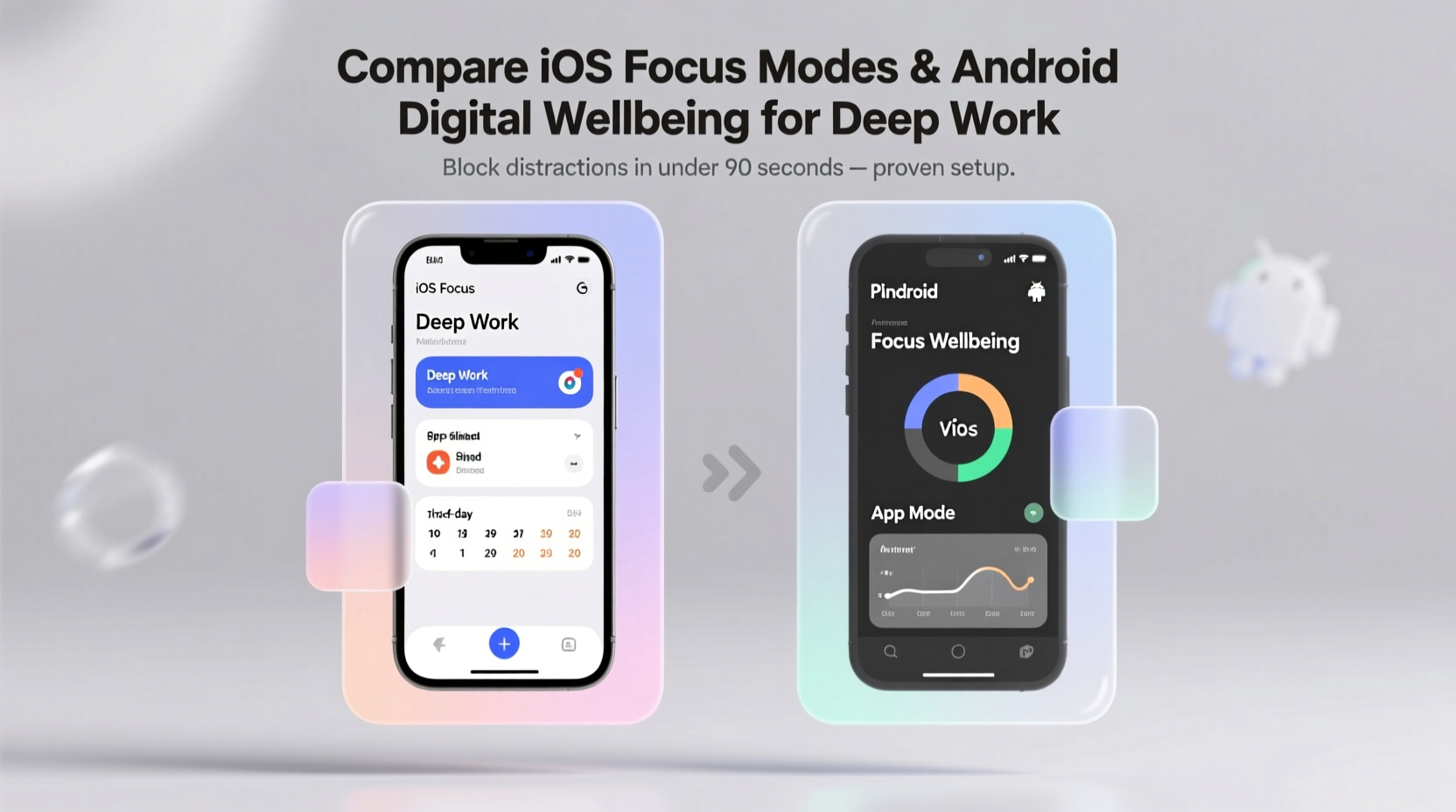
The Real Cost of Half-Blocked Distractions
Most professionals assume that “turning off notifications” is enough. It isn’t. Research from the University of California, Irvine shows that even brief, non-interruptive visual cues—like a subtle badge or silent vibration—trigger cognitive reloading, costing an average of 23 minutes to return to full concentration. What separates elite performers isn’t willpower—it’s architected attention. That means leveraging system-level controls designed not just to mute alerts, but to enforce behavioral boundaries.
iOS Focus Modes: Precision Through Integration
iOS Focus Modes operate at the OS layer with granular app, contact, and notification routing. You can silence Messages from everyone except two colleagues *and* hide Slack while allowing calendar alerts—all within one profile. Crucially, Focus Modes sync across Apple devices and integrate with Shortcuts, Calendar, and Siri. When your calendar event says “Deep Work,” Focus activates automatically—even if you forget to toggle it.
Android Digital Wellbeing: Simplicity With Limits
Android’s Digital Wellbeing offers intuitive, lightweight control: tap into Focus Mode, select apps to freeze, set duration, and go. Its strength lies in immediacy and cross-app consistency—but it lacks conditional logic. You cannot allow WhatsApp only from starred contacts, nor suppress notifications *except* for reminders tagged “Urgent.” Also, scheduling requires manual daily reactivation unless paired with third-party automation (e.g., Tasker), adding friction.
| Feature | iOS Focus Modes | Android Digital Wellbeing |
|---|---|---|
| Scheduling reliability | ✅ Native calendar-triggered activation | ⚠️ Manual or time-based only; no event-aware triggers |
| Contact filtering | ✅ Granular allow/block per app (e.g., Messages from “Core Team” only) | ❌ All-or-nothing per app; no contact-level nuance |
| Cross-device sync | ✅ Seamless across iPhone, iPad, Mac | ❌ Android-only; no Chromebook or desktop extension |
| Setup time (first use) | 💡 75 seconds | 💡 45 seconds |
Why “Just Turn Off Notifications” Is Dangerous Advice
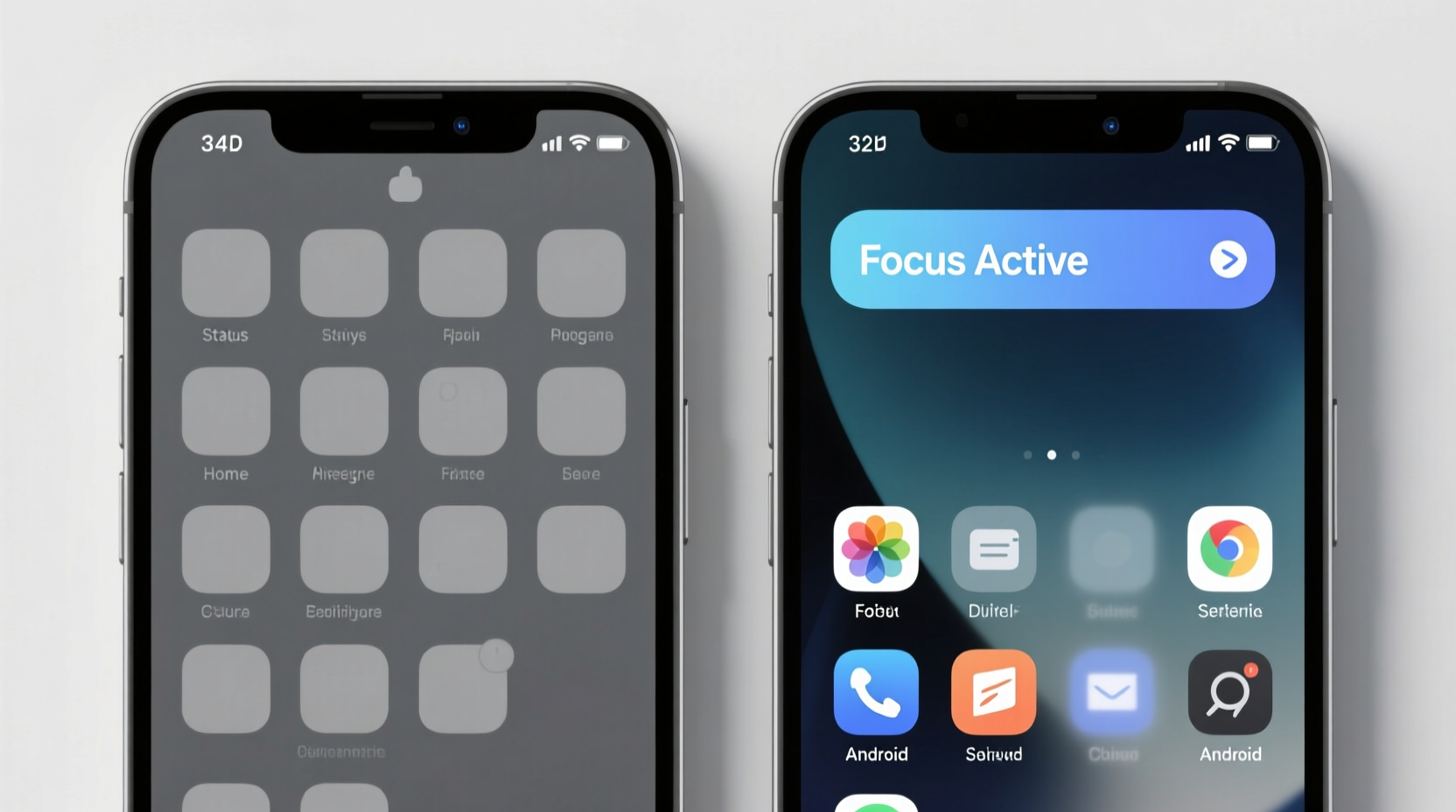
“Turning off notifications is sufficient for deep work” remains the most persistent myth—and the most costly. Behavioral neuroscientists confirm that partial suppression trains the brain to scan for micro-rewards (e.g., checking if a muted app *might* have updated). True cognitive safety requires environmental certainty: knowing—with zero ambiguity—that no new input will appear until the timer ends. That’s why Focus Modes’ visual containment (dimmed home screen, hidden app badges) matters as much as silencing sound.
✅ Validated best practice: Pair Focus Mode with a physical ritual—e.g., placing phone face-down in a drawer *after* enabling the mode. This creates dual-layer enforcement: software + somatic cue.
⚠️ Risk: Using Focus Mode *without* disabling Siri Suggestions or Spotlight search results. These surfaces still display recent messages or app updates—breaking visual containment.
💡 Actionable tip: In iOS Settings > Focus > [Your Mode] > People & Apps > toggle OFF “Siri Suggestions” and “App Library Suggestions.” On Android, disable “Suggestions” in Digital Wellbeing > Focus Mode > Settings.
What Actually Moves the Needle
It’s not about which platform is “better”—it’s about which delivers predictable, low-friction enforcement. For knowledge workers juggling calendars, messaging, and creative flow, iOS Focus Modes provide tighter guardrails. But Android users gain ground fast by combining Digital Wellbeing with Google Calendar’s “Focus Time” integration (available on Pixel and Android 14+), which now auto-enables Focus Mode when a blocked calendar event begins.
Everything You Need to Know
Can I use Focus Mode while still receiving emergency calls?
Yes—on both platforms. iOS allows “People” exceptions with options like “Repeated calls” (second call within 3 minutes rings through). Android lets you whitelist contacts in Focus Mode settings. Never rely on “Allow all calls”—it defeats the purpose.
Why does my Android Focus Mode keep turning off early?
Because Android’s native Focus Mode doesn’t persist across device restarts or certain battery optimizations. ✅ Fix: Go to Settings > Battery > Battery Optimization > Find “Digital Wellbeing” > Set to “Don’t optimize.” Also, avoid third-party “cleaner” apps—they often force-stop background services.
Does Focus Mode stop apps from refreshing data in the background?
No—it only suppresses notifications and interface visibility. Background app refresh continues unless disabled separately (Settings > General > Background App Refresh on iOS; Settings > Apps > [App] > Battery > Background restriction on Android). For true energy and attention savings, combine both.
Can I schedule different Focus Modes for morning vs afternoon deep work?
Absolutely. iOS supports unlimited named Focus Modes (e.g., “Morning Flow,” “Afternoon Drafting”)—each with unique schedules, allowed apps, and wallpaper. Android currently supports only one active Focus Mode at a time, though you can create multiple and switch manually via Quick Settings.




 浙公网安备
33010002000092号
 浙B2-20120091-4