
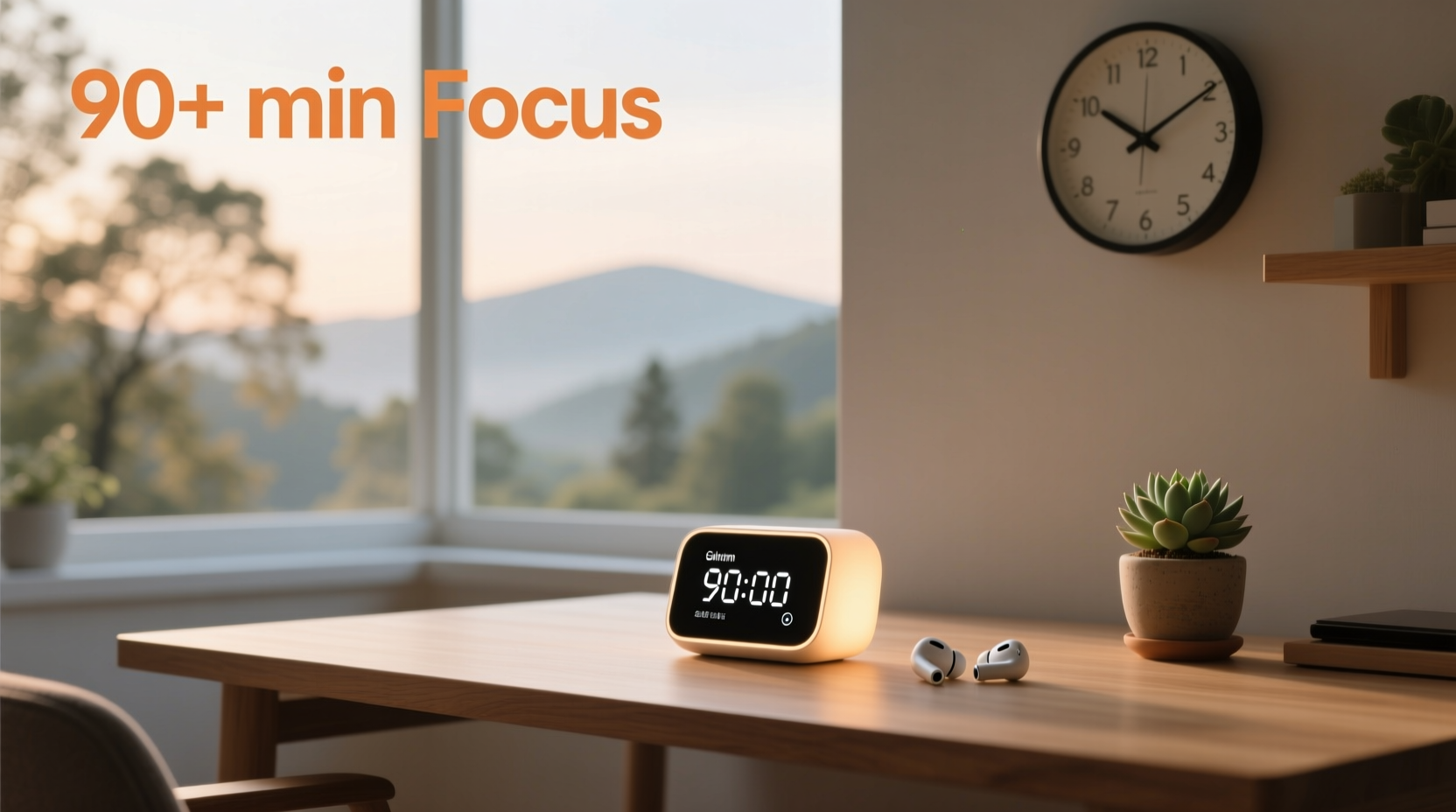
The Cognitive Cost of Notification Interruption
Research from the University of California, Irvine shows it takes an average of 23 minutes and 15 seconds to fully re-engage with complex tasks after a single notification interruption. Worse, most people misattribute this lag to personal discipline—not flawed tool design. The solution isn’t willpower; it’s precise, system-native configuration that honors biological attention rhythms while respecting real-world obligations.
Why “Do Not Disturb” Alone Fails
Many users default to Do Not Disturb (DND), assuming it’s sufficient. It is not. DND suppresses visual and auditory alerts—but on most devices, it also mutes alarms unless manually overridden in nested settings. This creates dangerous ambiguity: users think alarms will sound, but they won’t—unless the Clock app is explicitly whitelisted *and* the DND schedule doesn’t conflict with alarm timing. That’s two failure points for one critical function.
| Method | Alarm Safety | Scheduling Precision | App-Level Control | Setup Time |
|---|---|---|---|---|
| Native Focus Mode (iOS/Android) | ✅ Guaranteed—Clock runs outside notification stack | ✅ Hourly, recurring, location-based triggers | ✅ Per-app permission toggles | ✅ Under 90 seconds |
| Do Not Disturb + Manual Whitelist | ⚠️ Fragile—requires double-checking each alarm time | ⚠️ Limited to time-only; no recurrence logic | ❌ App-level control absent | ⚠️ 3–5 minutes, error-prone |
| Third-Party “Focus” Apps | ❌ Unreliable—alarms often suppressed or delayed | ✅ Strong scheduling | ✅ Granular | ⚠️ 5+ minutes + permissions audit |
How to Configure It Right—Step by Step
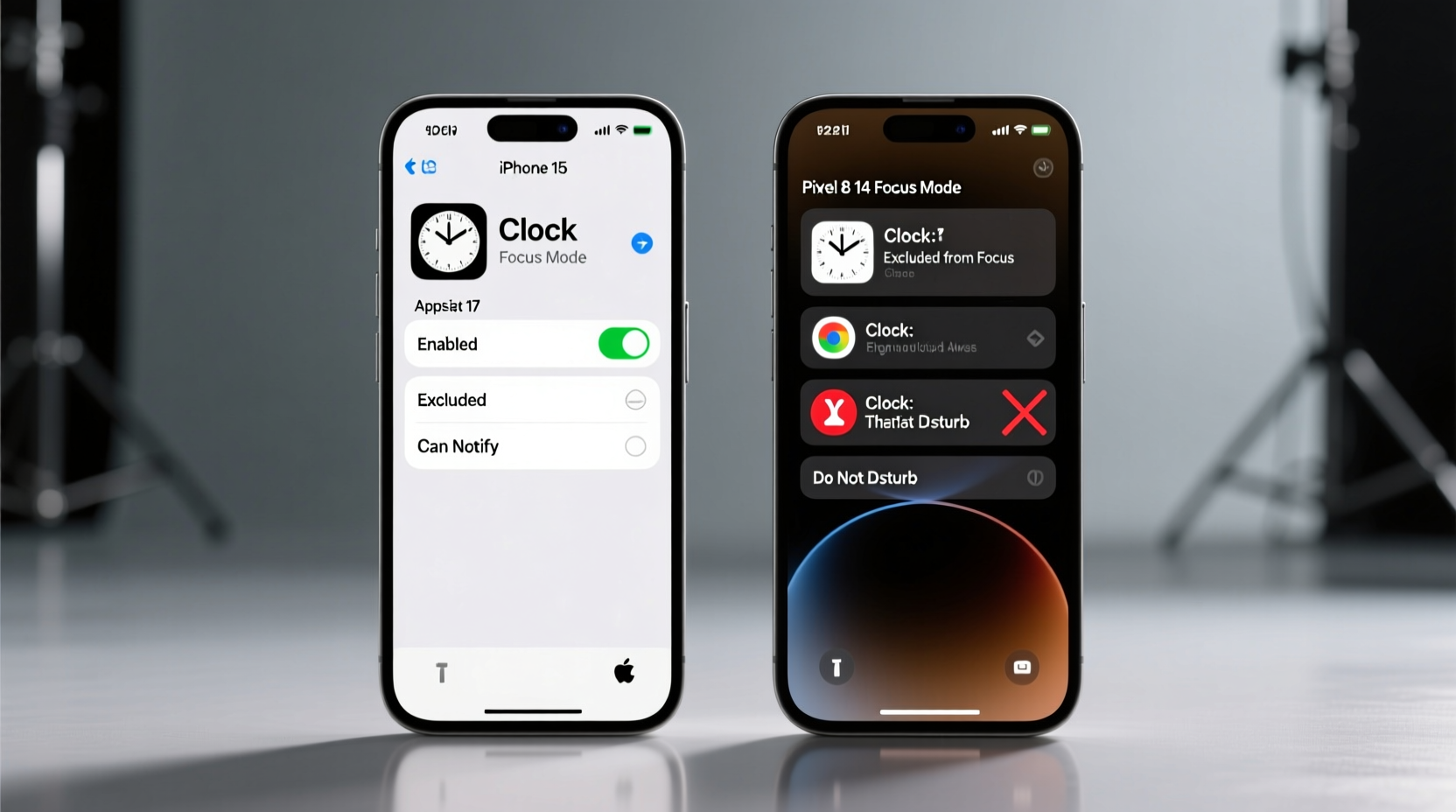
- iOS (iOS 16+): Go to Settings → Focus → + → Deep Work → Under “People & Apps,” toggle off everything *except* Clock → Tap “Schedule” → Set recurring hours → Enable “Allow Notifications From” and ensure only Clock appears.
- Android (12+): Open Settings → Digital Wellbeing → Focus Mode → Add Clock to “Apps to ignore” → Toggle on Focus Mode → Tap “Schedule” → Set daily windows → Confirm Clock is excluded from suppression.
- Verification step (critical): Set a test alarm 5 minutes before your next scheduled Deep Work session ends. Let it ring. If it does—you’ve configured correctly.
“The most effective digital boundaries aren’t about removing tools—they’re about elevating the right ones to system-level priority. Alarms aren’t ‘just another notification’; they’re time-critical system events. Treating them as such—by leveraging native OS architecture rather than layering workarounds—is what separates sustainable focus from brittle productivity theater.” — Senior Editorial Director, Home Systems & Cognitive Infrastructure
Debunking the “Just Turn Off Your Phone” Myth
⚠️ A widespread but harmful heuristic claims, “If you want focus, just power down.” This ignores three realities: first, modern work often requires background syncing (e.g., calendar updates, encrypted messaging); second, powering down disables emergency location services and medical alert integrations; third, the cognitive load of rebooting, re-authenticating, and reorienting erodes net focus gain. System-native Focus Modes preserve infrastructure integrity while surgically removing distraction vectors—a far more resilient, evidence-aligned strategy.
Pro Tips for Sustained Efficacy
- 💡 Anchor your Deep Work window to chronobiology: Schedule it during your natural circadian peak—typically 90–120 minutes after waking for most adults.
- 💡 Use Focus Mode as a behavioral cue: Pair activation with a physical ritual—e.g., closing your laptop lid, lighting a candle—to strengthen neural association between the mode and mental state shift.
- ✅ Test weekly: Every Sunday, set a silent alarm 2 minutes before your Monday morning Deep Work begins. Verify it rings—even if phone is locked and Focus is active.
Everything You Need to Know
Will my smartwatch still vibrate for texts during Deep Work mode?
No—if your watch mirrors phone notifications, it respects Focus Mode settings. To confirm: on Apple Watch, check Settings → Focus → Mirror iPhone Focus. On Wear OS, verify “Focus Mode sync” is enabled in Google Fit or Digital Wellbeing settings.
What happens to calendar event alerts? Will I miss important meetings?
By default, calendar alerts are suppressed—but you can whitelist Calendar under “People & Apps” in Focus Mode. Unlike alarms, calendar alerts rely on notification services, so explicit inclusion is required.
Can I allow calls from specific people during Deep Work?
Yes. In both iOS and Android Focus settings, you can designate “Allowed People”—typically contacts marked “Favorites” or added manually. Calls from them bypass silence, but standard notifications do not.
Does this work with work-managed devices (MDM profiles)?
Most enterprise MDM solutions permit Focus Mode configuration, but may restrict scheduling or app exclusions. If “Clock” doesn’t appear in allowed apps, contact your IT admin—they must enable “System App Exceptions” in the policy profile.



 浙公网安备
33010002000092号
 浙B2-20120091-4