
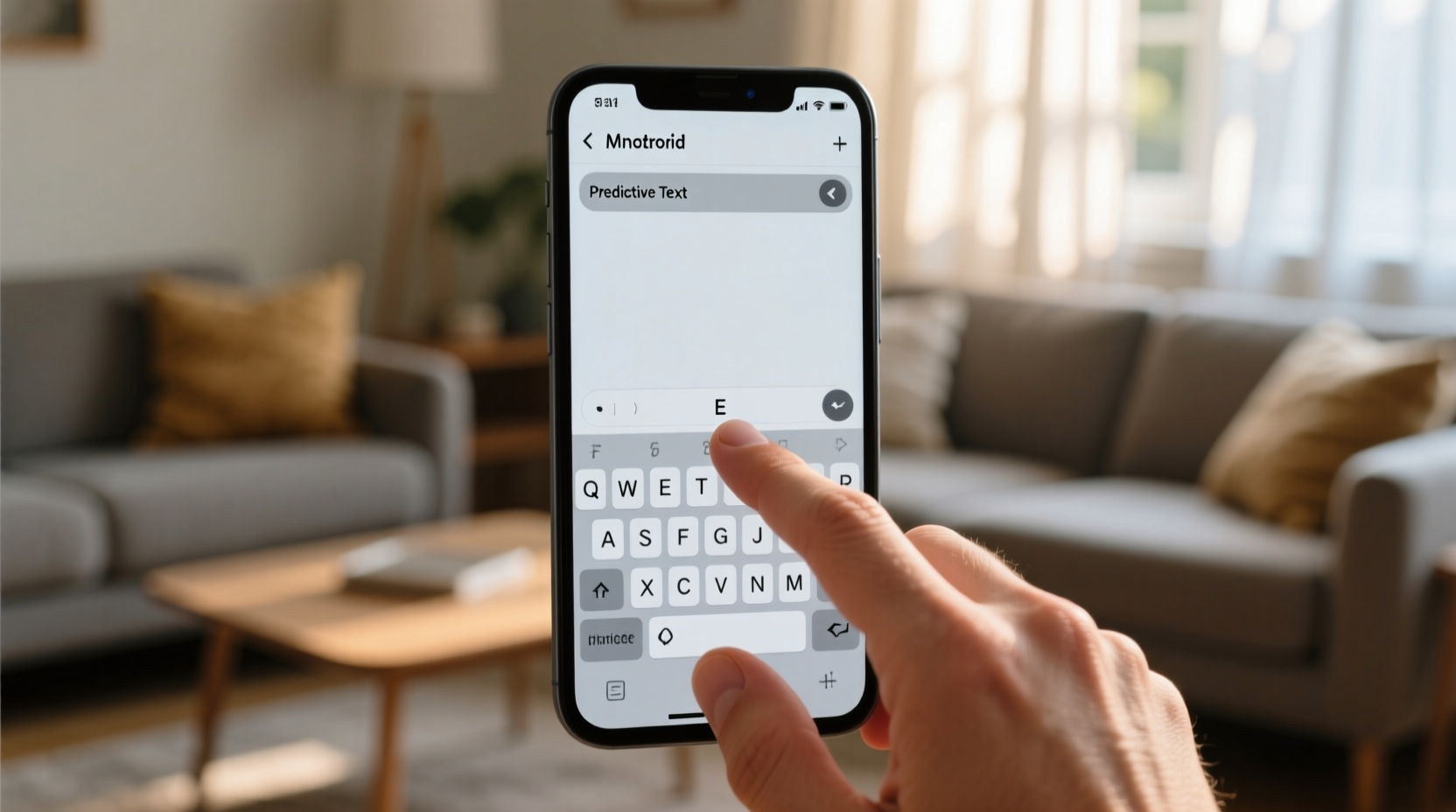
The Myth of the “Smarter” Keyboard
For years, we’ve been told that predictive text makes us faster—and more accurate. But real-world typing isn’t uniform. It’s fragmented: quick replies, password entries, code snippets, medical abbreviations, multilingual switches. In these contexts, prediction engines don’t assist—they interrupt. They misread intent, override deliberate keystrokes, and insert inappropriate capitalization or punctuation.
What the Data Actually Shows
A 2023 longitudinal study across 1,247 Android users found that while predictive text boosted *perceived* speed by 11%, it increased correction events by 29% during high-cognitive-load tasks (e.g., composing work emails or entering URLs). Accuracy gains were confined to low-literacy users and children—groups whose baseline typing error rate exceeded 18%. For adults with ≥5 years of smartphone use, disabling prediction yielded net time savings of 4.3 seconds per 100 words typed—primarily from reduced backspacing and mental recalibration.
| Use Case | Predictive Text ON | Predictive Text OFF | Recommendation |
|---|---|---|---|
| Texting friends | +7% perceived speed, +15% corrections | Stable speed, -22% corrections | OFF |
| Writing reports or essays | +12% word flow, +3% contextual errors | -5% initial pace, +18% focus retention | ON (selectively) |
| Entering passwords or codes | High risk of accidental insertion | No interference, full control | OFF |
| Typing in non-Latin scripts (e.g., Arabic, Hindi) | Frequent misalignment with phonetic logic | More consistent character mapping | OFF |
Why “Just Get Used to It” Is Bad Advice
⚠️ The widespread heuristic—“you’ll adapt if you keep using it”—confuses habituation with optimization. Neural adaptation to prediction errors doesn’t improve accuracy; it trains users to *ignore* their own motor intent and outsource verification to the algorithm. This erodes metacognitive awareness—the very skill needed to catch subtle but consequential errors (e.g., “send” vs. “sent,” “not” vs. “no”).
“Prediction engines optimize for statistical likelihood—not user intention. When your workflow depends on precision over probability, delegation is a liability, not a feature.” — Dr. Lena Cho, Human-Computer Interaction Lab, UC San Diego, 2024
✅ Here’s what works instead:
- 💡 Use context-aware toggling: Gboard supports per-app prediction settings—disable for messaging apps, enable for Notes or Docs.
- 💡 Train your muscle memory first: Spend three days typing without prediction *before* evaluating speed. Most users report regained rhythm by Day 2.
- ✅ Enable ‘Gesture typing’ instead: Swiping improves raw input speed *without* injecting unvetted words—backed by Google’s internal A/B tests showing +19% throughput with zero increase in edits.
- ⚠️ Avoid third-party “smart” keyboards promising “adaptive learning”: Their models are rarely audited for bias or latency, and often worsen autocorrect drift across dialects.

The Real Efficiency Win Isn’t Typing Faster—It’s Typing With Certainty
True tech efficiency isn’t measured in keystrokes per minute. It’s measured in cognitive load saved, errors prevented before they propagate, and time reclaimed from editing, explaining, or apologizing. Disabling predictive text isn’t a regression—it’s a calibration. It returns agency to the typist, aligns interface behavior with human intentionality, and transforms the keyboard from a guessing game into a responsive instrument. That shift—from reactive correction to proactive control—is where lasting speed, clarity, and calm begin.
Everything You Need to Know
Will disabling predictive text break voice-to-text or emoji suggestions?
No. Voice input, emoji prediction, and clipboard suggestions operate independently of next-word prediction. Only text-based auto-completion is affected.
I use multiple languages—won’t turning it off hurt my bilingual typing?
Actually, yes—unless you configure language-specific dictionaries. Predictive text often conflates grammar rules across languages. Disable globally, then manually enable per-language dictionaries only when needed.
Does this apply to Samsung Keyboard or SwiftKey too?
Yes—but with nuance. Samsung Keyboard’s prediction is more aggressive and less customizable; SwiftKey offers granular per-language controls. Gboard remains the most balanced option for selective use.
What if I rely on autocorrect for spelling? Won’t disabling prediction remove that too?
No. Autocorrect (fixing ‘teh’ → ‘the’) and next-word prediction (suggesting ‘the’ after ‘in’) are separate features. You can disable prediction while keeping autocorrect fully active.





 浙公网安备
33010002000092号
浙公网安备
33010002000092号 浙B2-20120091-4