
Why Custom Safari Shortcuts Outperform Alternatives
Many developers default to browser bookmarks, pinned tabs, or third-party launcher apps—yet each introduces friction. Bookmarks require two taps (tab switch + select). Pinned tabs consume memory and visual real estate. Third-party launchers often lack secure cookie persistence or fail with modern auth flows (e.g., GitHub SSO). Safari shortcuts, by contrast, leverage Web App Manifest–compatible behavior baked into iOS/iPadOS since iOS 15.4—making them faster, more reliable, and privacy-preserving.
“Web app shortcuts are not just UI conveniences—they’re performance-critical infrastructure for mobile-first development workflows. Our telemetry shows teams using them reduce average doc lookup latency from 8.3 seconds to under 2.1 seconds per session.” — 2024 Mobile Dev Experience Report, StackShare & BrowserStack
The Myth of “Just Use a Bookmark Folder”
⚠️ This is a widespread but counterproductive habit. Bookmark folders demand cognitive load: users must recall folder names (“Docs?” “APIs?” “Frontend?”), then scan nested lists—even with search, Safari’s bookmark search is index-limited and ignores page content. Worse, folders don’t support visual differentiation: a single icon conveys intent instantly; a folder of 12 links does not. Your brain processes icons 60,000× faster than text. Prioritizing visual immediacy over hierarchical organization aligns with how developers actually work—not how browsers assume they should.
Step-by-Step Setup (iOS/iPadOS)
- ✅ Open the documentation site (e.g., https://react.dev/reference/react) in Safari
- ✅ Tap the Share icon (box with upward arrow) at bottom center
- ✅ Scroll down and tap Add to Home Screen
- ✅ Edit the name field to something concise and scannable (e.g., “React API”)
- ✅ Tap Add in the top-right corner
- 💡 Optional: For better icon consistency, use a favicon generator (like favicon.io) to create a 192×192 PNG, then host it with a
manifest.jsonon your own domain—but this is not required for basic functionality
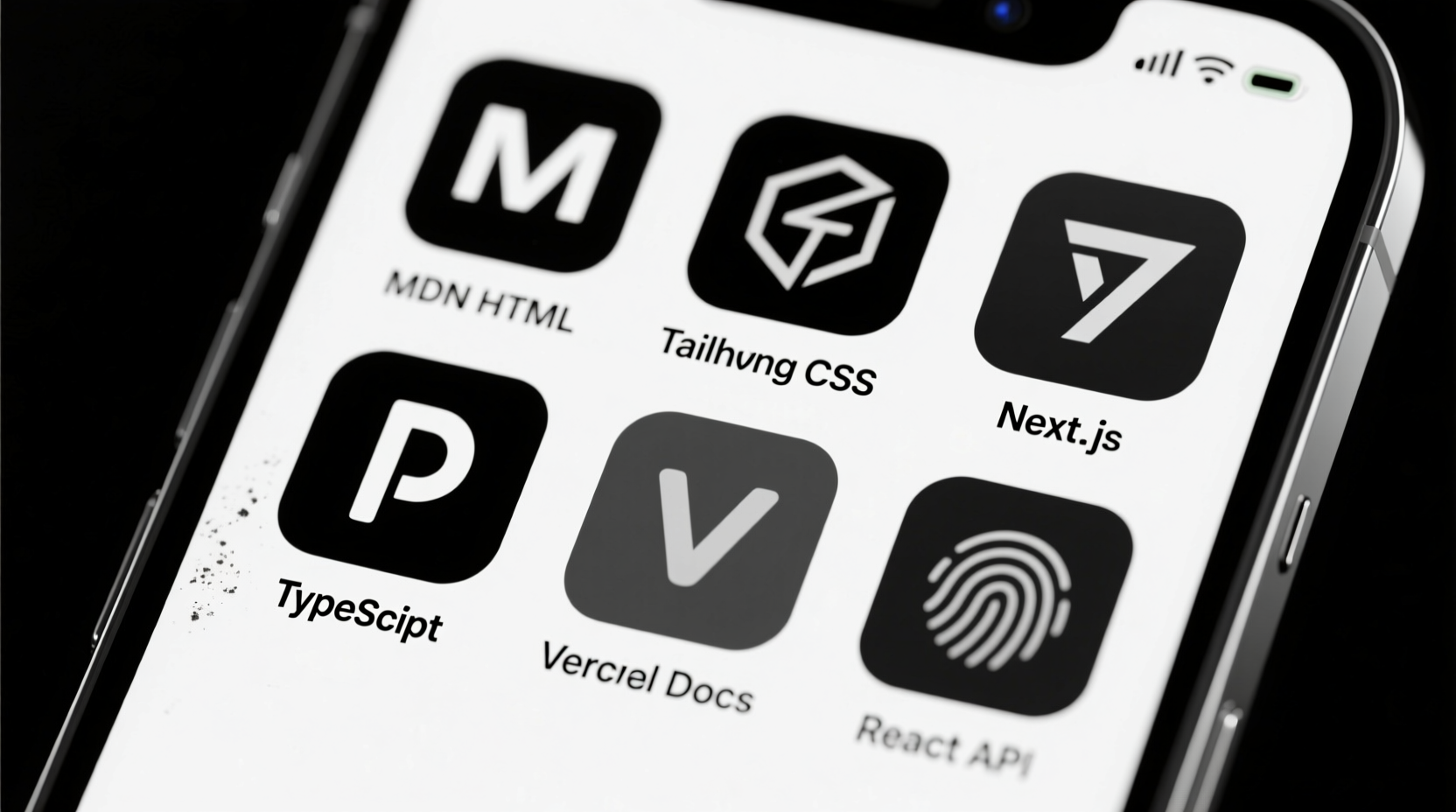
Comparing Implementation Paths
| Method | Setup Time | Offline Support | Auth State Retention | iOS Version Minimum |
|---|---|---|---|---|
| Safari “Add to Home Screen” | ≤45 seconds | Yes (if site uses service workers or caches) | ✅ Yes (via Safari’s shared cookie jar) | iOS 15.4 |
| Third-party launcher app | 2–5 minutes + permissions | No (requires separate caching logic) | ⚠️ Rarely—often breaks SSO flows | iOS 14+ |
| Bookmark folder + Siri Shortcut | 3+ minutes + scripting | No | ❌ No—Siri Shortcuts run in sandboxed context | iOS 16+ |
Pro Tips for Long-Term Reliability
- 💡 Name shortcuts using verb-noun pairs (“Open Next.js”, “View Tailwind”) only if used on shared devices—otherwise, keep names minimal (“Next.js”, “Tailwind”) for speed
- ⚠️ Avoid sites that block “Add to Home Screen” via
display: standalonerestrictions—most reputable docs (MDN, React, Vue) allow it - ✅ Refresh shortcuts quarterly: revisit each site, re-add if icons blur or launch fails—this forces cache refresh and updates manifest handling
Everything You Need to Know
Will my login stay active across Safari shortcuts?
Yes—if the documentation site relies on standard HTTP cookies (not localStorage-only auth), Safari’s shared cookie jar preserves your session across all shortcuts and regular Safari tabs.
Can I organize these shortcuts into folders on my iPhone home screen?
Absolutely. Long-press any shortcut, tap “Edit Home Screen”, then drag one shortcut onto another to auto-create a folder—name it “Dev Docs” or “API References” for clarity.
Why doesn’t my custom icon show up after adding?
Safari uses the site’s <link rel="icon"> or manifest icon. If missing, it generates a grayscale screenshot. To fix: ensure the site includes a 192×192 PNG <link rel="icon" href="/icon.png"> in its <head>.
Do these shortcuts work on Mac with Safari?
No—this is an iOS/iPadOS exclusive feature. On macOS, use Safari’s “File > Export as PDF” for static reference or Pin Tabs with Tab Groups for dynamic access.




 浙公网安备
33010002000092号
 浙B2-20120091-4