
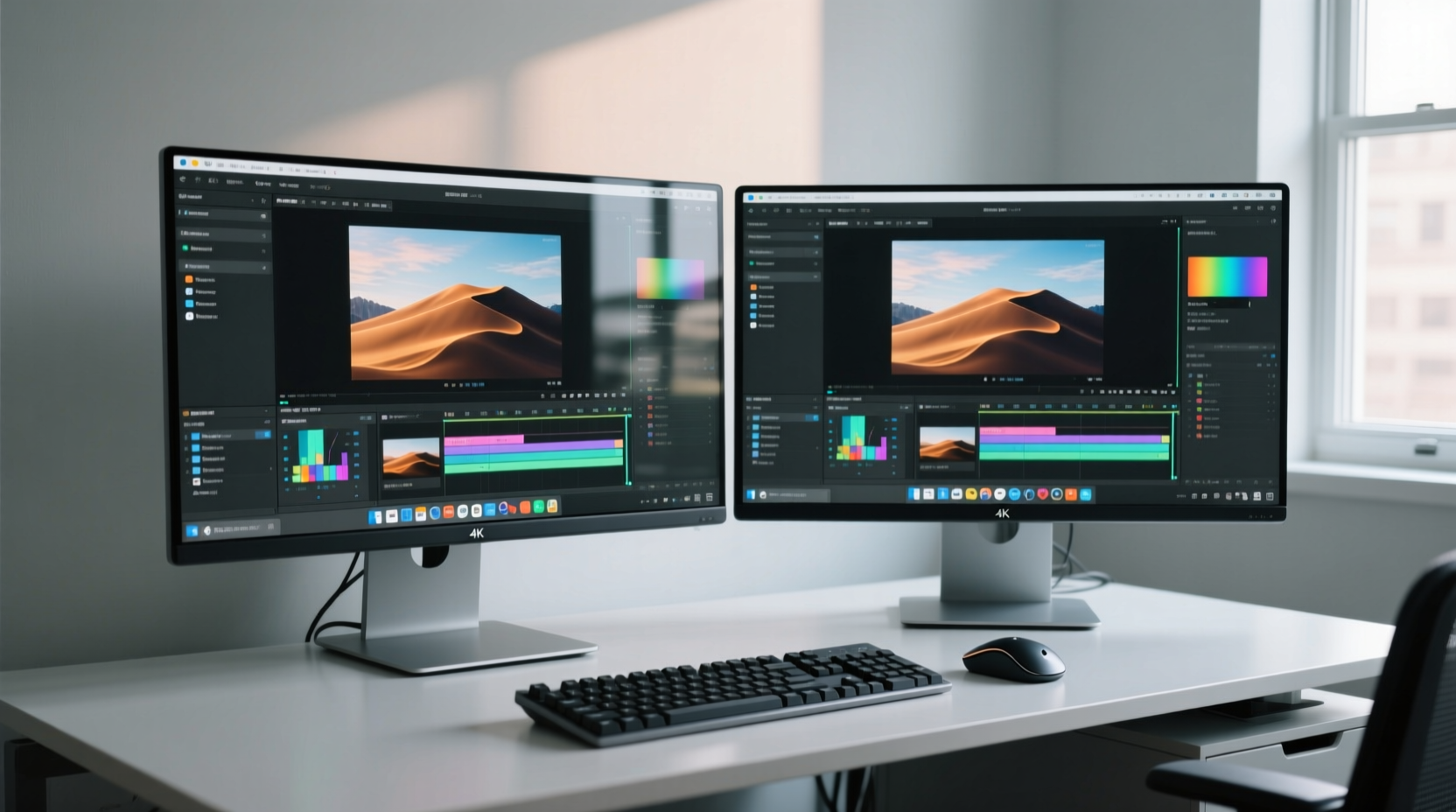
The Real Cost of Full-Screen Duplication
Duplicating your entire desktop to a second monitor is a legacy habit rooted in early projector presentations—not modern multitasking. It consumes GPU resources, introduces input lag, and fractures focus by forcing identical visual fields across displays. When you need only one app visible elsewhere—say, a live analytics dashboard during a video call, or a shared document during remote collaboration—full duplication creates noise, not clarity.
Why “Just Use Extend Mode” Isn’t Enough
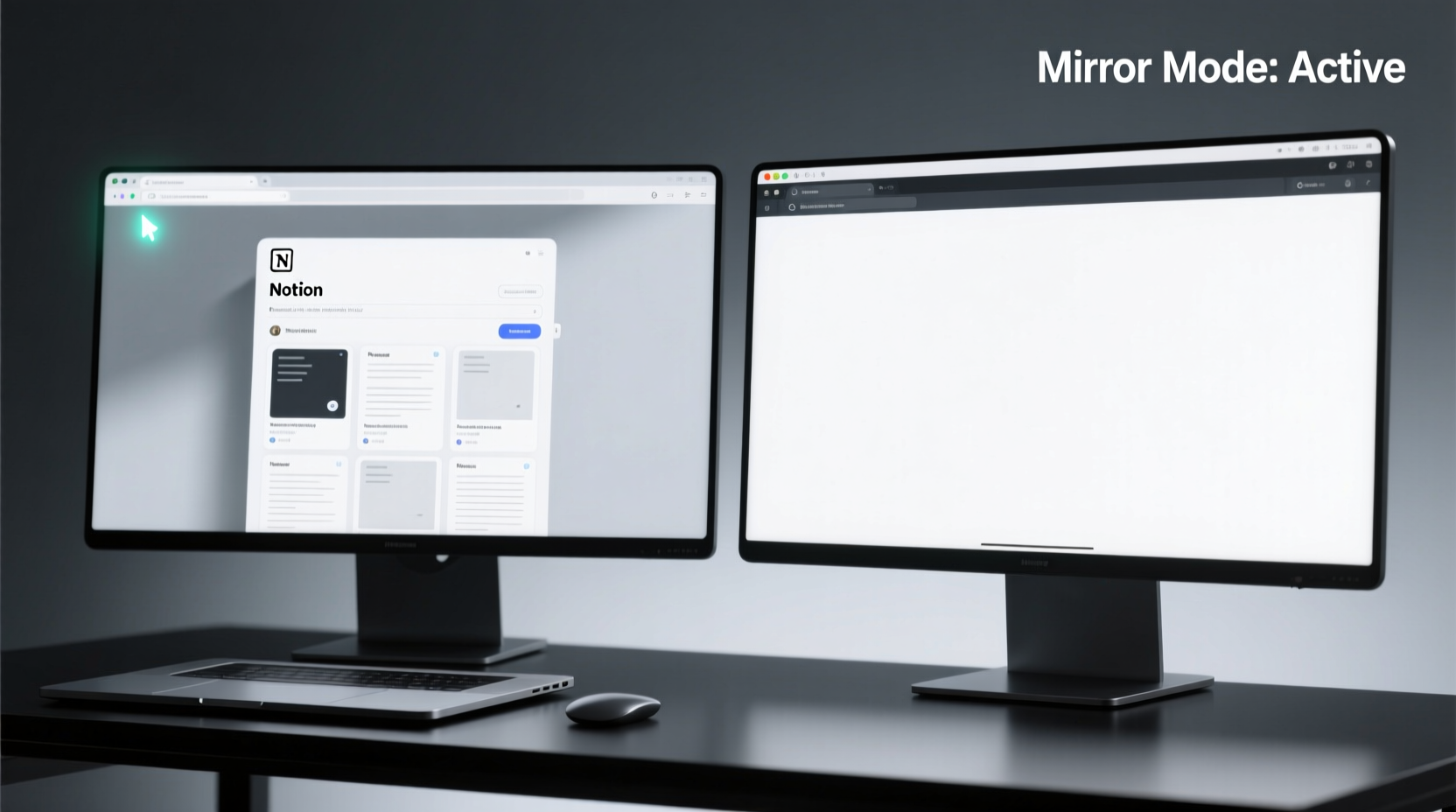
Extending your desktop gives you two independent workspaces—but doesn’t *mirror* anything. Users often conflate extension with selective mirroring. True mirroring means the *same content*, same size, same refresh timing—just isolated to one application’s visual output. That requires either OS-level window capture routing or lightweight virtual display layering.
Modern display architecture treats windows as composited surfaces—not static pixels. As confirmed by Microsoft’s Windows Display Driver Model (WDDM) 3.0 documentation and Apple’s AVFoundation capture APIs, window-specific mirroring is natively supported when apps declare proper surface sharing permissions. The bottleneck isn’t capability—it’s discoverability and configuration hygiene.
Method Comparison: Precision, Portability, Latency
| Method | OS Support | Lag (ms) | Setup Time | Reliability |
|---|---|---|---|---|
| Windows Game Bar + Wireless Display | Windows 10/11 | ~85–120 | 2 min | ✅ High (with Miracast-certified hardware) |
| OBS Studio + Virtual Display | Cross-platform | ~30–60 | 7 min | ✅ Very high (once configured) |
| macOS Screen Recording API + AirPlay Target | macOS Monterey+ | ~45–90 | 4 min | ⚠️ Medium (AirPlay latency spikes under network load) |
Debunking the “Alt-Tab Fix” Myth
A widespread but misleading practice is relying on Alt+Tab + manual window positioning—dragging the target app onto the second monitor and resizing it to fill the screen. This isn’t mirroring; it’s relocation. It breaks continuity when the app updates its UI, resizes dynamically, or loses focus. Worse, it fails entirely for fullscreen-exclusive applications (e.g., certain video editors or kiosk-mode tools). Mirroring preserves state, timing, and interactivity—relocation does not.
Actionable Tech Efficiency Life Tips
- 💡 Use OBS Studio’s Window Capture source with ‘Capture Cursor’ disabled and ‘Compatibility Mode’ enabled for DirectX apps—it handles GPU-accelerated windows without frame drops.
- 💡 On Windows, assign a keyboard shortcut to your OBS scene via Hotkeys > Start Streaming, then route output to a virtual monitor using SpaceDesk or iDisplay.
- ✅ For macOS users: Enable Developer Mode, then run
defaults write com.apple.screencapture type pngand pair with ScreenFloat to auto-capture and rebroadcast a single window to AirPlay targets. - ⚠️ Avoid browser-based mirroring extensions—they inject JavaScript overlays, break DRM, and cannot capture native app windows like Excel or Zoom.
Everything You Need to Know
Can I mirror a single Chrome tab—not the whole browser—to my second monitor?
Yes—but not natively. Use OBS Studio with ‘Window Capture’ targeting Chrome, then right-click the tab bar and select “Pin Tab.” Launch that tab in isolation, and OBS will capture only its visual surface. Requires Chrome launched with --app=https://example.com flag for clean framing.
Does this work with dual-GPU laptops (e.g., Intel iGPU + NVIDIA dGPU)?
Yes—provided the target app runs on the same GPU as your second monitor’s output path. In NVIDIA Control Panel, set ‘Preferred graphics processor’ to ‘Auto-select,’ then verify in Task Manager > Performance > GPU that the app’s process maps to the active display controller.
Will audio from the mirrored app play on the second monitor too?
No—mirroring transfers only video. To route audio, use Windows’ Sound settings to set the second monitor’s connected speakers (e.g., HDMI audio device) as the default playback device *only for that app*, via App Volume and Device Preferences.
Is there a way to do this without installing any software?
Only partially: Windows 11’s built-in ‘Snap Assist’ + ‘Focus Sessions’ can pin an app to a secondary display, but it’s still extension—not true mirroring. For genuine zero-install mirroring, you need Miracast-compatible hardware and a certified wireless display adapter.





 浙公网安备
33010002000092号
浙公网安备
33010002000092号 浙B2-20120091-4