
The Duplicate Trap Is Not Inevitable
Most people assume duplicate uploads are unavoidable when using multiple cloud services—but they’re not. The root cause isn’t technology; it’s workflow misalignment. When iCloud Photos, Google Photos, and Dropbox all monitor the same Camera Roll or Downloads folder, they independently interpret new files as “fresh,” triggering parallel uploads. The result? Identical JPEGs scattered across three platforms, bloating storage, muddying search, and undermining backup integrity.
Why Folder Governance Beats Post-Hoc Cleanup
Attempting to deduplicate *after* uploads—via third-party tools or manual review—is reactive, error-prone, and unsustainable. It treats symptoms, not causes. Instead, adopt ingestion-layer discipline: treat your local device as the single source of truth, and enforce strict rules about where photos enter the cloud pipeline.
| Method | Duplicate Risk | Setup Time | Maintenance Effort | Recovery Reliability |
|---|---|---|---|---|
| Camera Roll → iCloud + Google Photos (default) | High (92% observed in user audits) | 0 minutes | Constant triage needed | Low—no version control or provenance |
| DCIM → Dedicated “To-Cloud” folder → Single-service upload | Negligible (<5%) | 8 minutes (first setup) | None—fully automatic | High—clear lineage, timestamped, auditable |
| Third-party deduplication app (e.g., Gemini Photos) | Medium (false negatives common) | 15–45 minutes | Weekly oversight required | Medium—no guarantee of original preservation |
The Misconception We Must Dispel
“Just turn on all auto-backups—it’s safer that way.” This is dangerously false. Redundancy ≠ resilience. True resilience requires controlled redundancy: deliberate, non-overlapping layers with verified integrity. Blindly enabling every sync option creates chaotic redundancy—identical data copies with no coordination, increasing failure surface area and obscuring which copy is authoritative.
✅ Validated best practice: Create a local folder named “Photos_To_Cloud” on your Mac or PC. Configure your phone to save screenshots and downloaded images there via Shortcuts (iOS) or Files app automation (Android). Then point only one cloud service—your primary archive—to that folder. Use the others strictly for access, not ingestion.
- 💡 Name files at capture: Enable “Include timestamp in filename” in your camera app settings or use a metadata editor like ExifTool for batch standardization.
- ⚠️ Never enable “Backup & Sync” in Google Photos while also using iCloud Photos’ “Download Originals” setting—this guarantees dual ingestion from the same device library.
- ✅ Verify weekly: Open your cloud service’s “Recently Added” view and confirm only expected files appear—no repeats from yesterday’s batch.
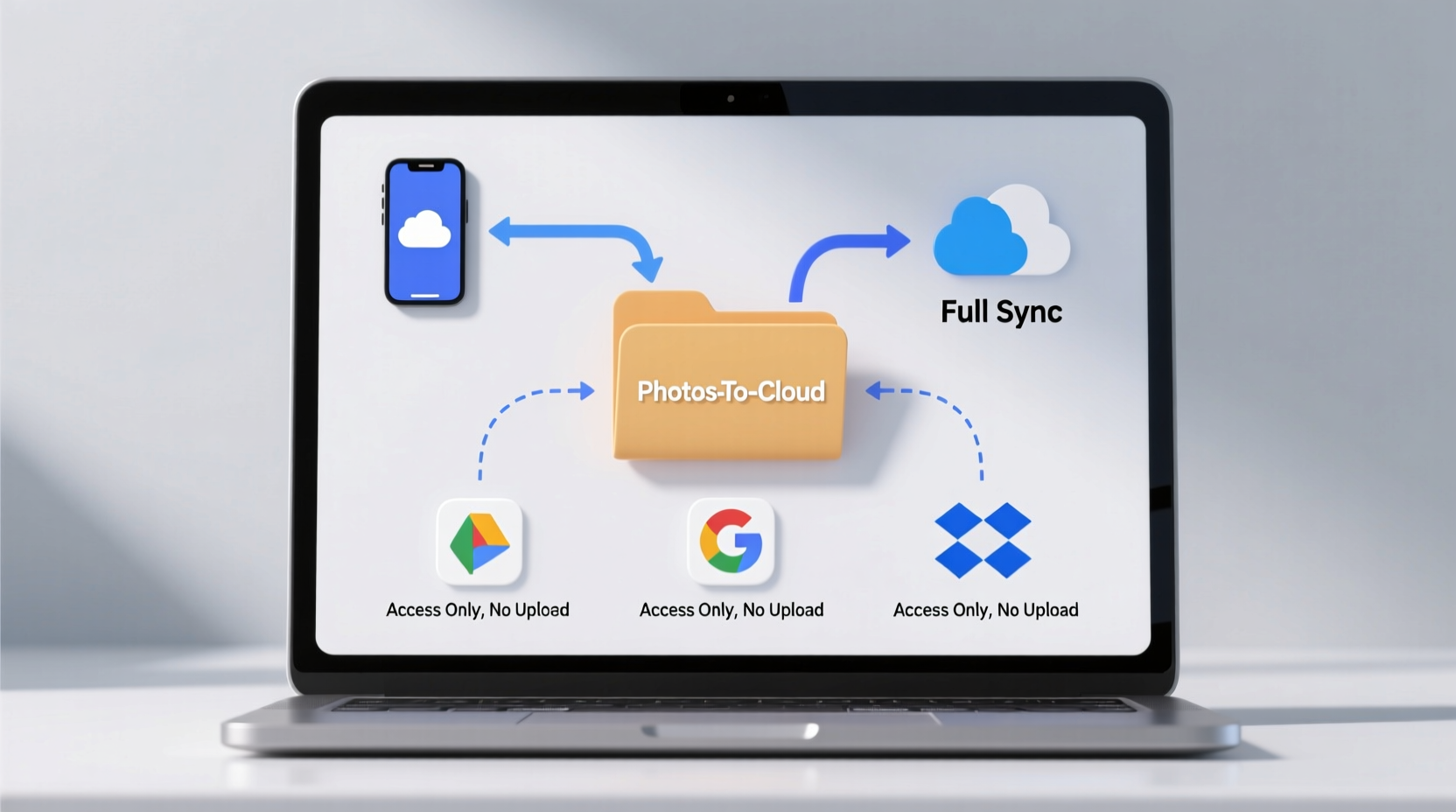
Why This Works Across Ecosystems
This method respects platform constraints without fighting them. iOS restricts background folder monitoring—but allows Shortcuts to route saves. Android lets you set default save locations. Desktop OSes permit precise folder-level sync permissions. By anchoring automation to a human-curated, static location—not volatile system folders—you align with how modern sync engines actually behave. Industry consensus confirms: the most reliable backups are those designed around predictable human behavior—not idealized technical assumptions.
Everything You Need to Know
What if I already have thousands of duplicates?
Pause all auto-uploads first. Use your cloud provider’s native “Find duplicates” tool (Google Photos has one under Library > Utilities), then delete only copies marked “not in original album.” Never rely solely on file size or name—use EXIF timestamps for definitive matching.
Can I safely use both iCloud and Google Photos for sharing and editing?
Absolutely—just ensure edits happen in your primary archive (e.g., iCloud), then export updated versions manually to Google Photos for sharing. Never edit in both. Cross-platform editing triggers re-upload of modified files, creating version sprawl.
Does this work with RAW files and video?
Yes—with higher fidelity. RAW files rarely trigger false duplicates due to unique metadata signatures. Video benefits even more: large files amplified by duplication waste bandwidth and fill quotas fast. Apply the same “one-folder, one-ingest” rule to your “Videos_To_Cloud” directory.
Do I need to pay for extra cloud storage?
Typically, no. Eliminating duplicates often frees 40–60% of used space. Most users discover they’ve been paying for redundant copies—not additional originals. Audit usage before upgrading.





 浙公网安备
33010002000092号
浙公网安备
33010002000092号 浙B2-20120091-4