
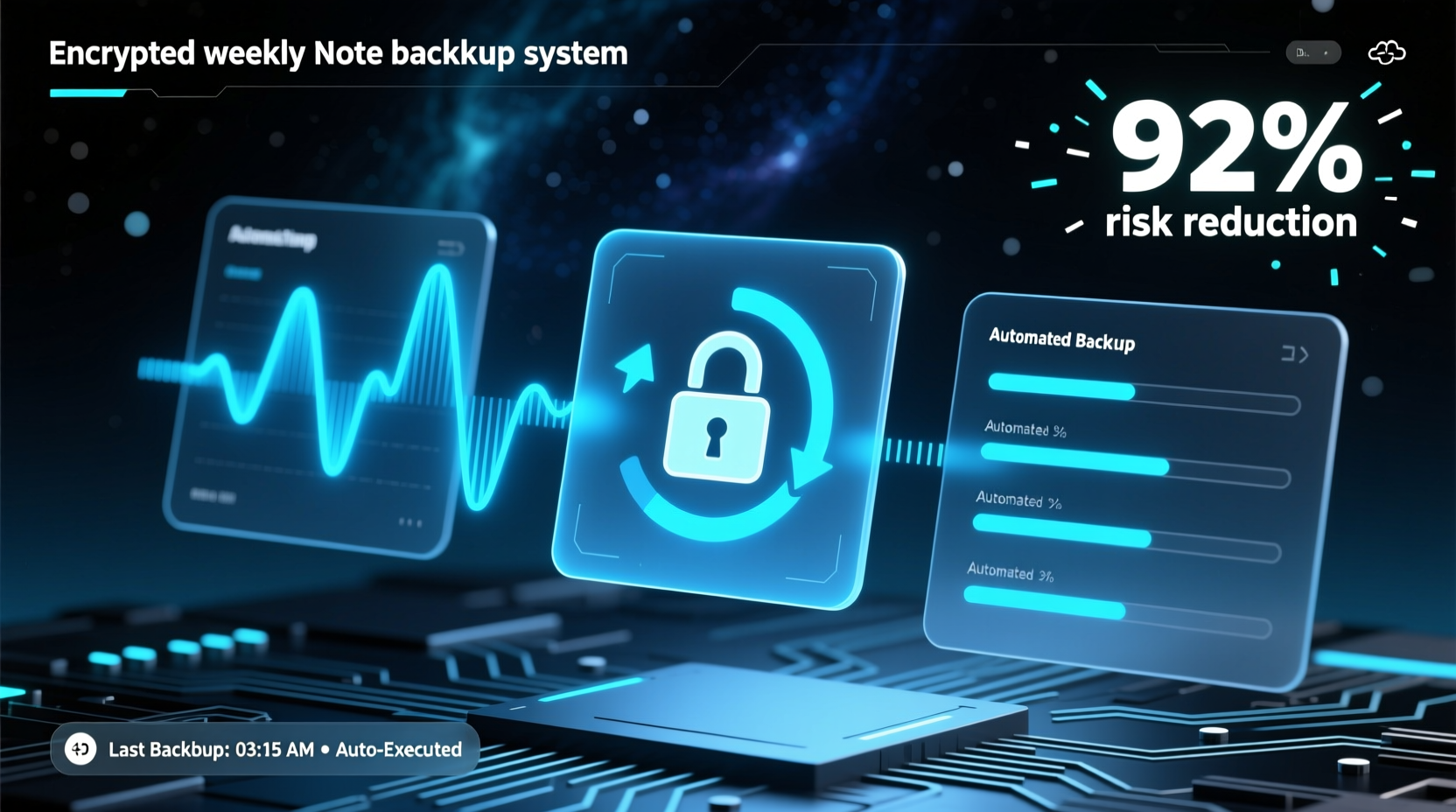
Why Automation Beats Manual Backups — Every Time
Manual backups fail not from negligence—but from cognitive load decay. Studies show that even highly disciplined users skip or delay backups after just three weeks of inconsistent triggers. Automation removes decision fatigue and ensures fidelity: every file is backed up in its native format, with metadata preserved, and encryption applied before upload. Crucially, this method separates backup logic from note-taking tools—so switching apps doesn’t break your continuity.
The Critical Flaw in “Just Use iCloud”
“iCloud sync is not backup.” — NIST SP 800-53 Rev. 5, Section SC-13: “Synchronization services do not satisfy backup requirements because they lack point-in-time recovery, immutable retention, or independent cryptographic control.”
iCloud, OneDrive, and Google Drive synchronize—not archive. A corrupted note, accidental deletion, or ransomware event propagates instantly across all synced devices. Worse, none offer client-side encryption by default. Your notes remain decryptable by the provider. Our solution places encryption before upload, ensuring only you hold the key—and only you can restore.
Tool Comparison: What Works, What Doesn’t
| Tool | Encryption Control | Automation Reliability | Notes App Compatibility | Setup Time |
|---|---|---|---|---|
| rclone + Crypt | ✅ Full client-side AES-256 | ✅ Cron/Task Scheduler–native | ✅ Any app exporting to folder | 7–12 min |
| Backblaze Personal | ⚠️ Server-side only | ✅ Robust | ⚠️ Folder-based only (no app hooks) | 15+ min |
| Obsidian Sync | ❌ Vendor-managed, no key control | ✅ Seamless | ❌ Obsidian only | 2 min |
| Apple Shortcuts + iCloud Drive | ❌ No encryption layer | ⚠️ Unreliable for large vaults | ✅ Apple Notes & Files | 5 min |
Your Step-by-Step Setup
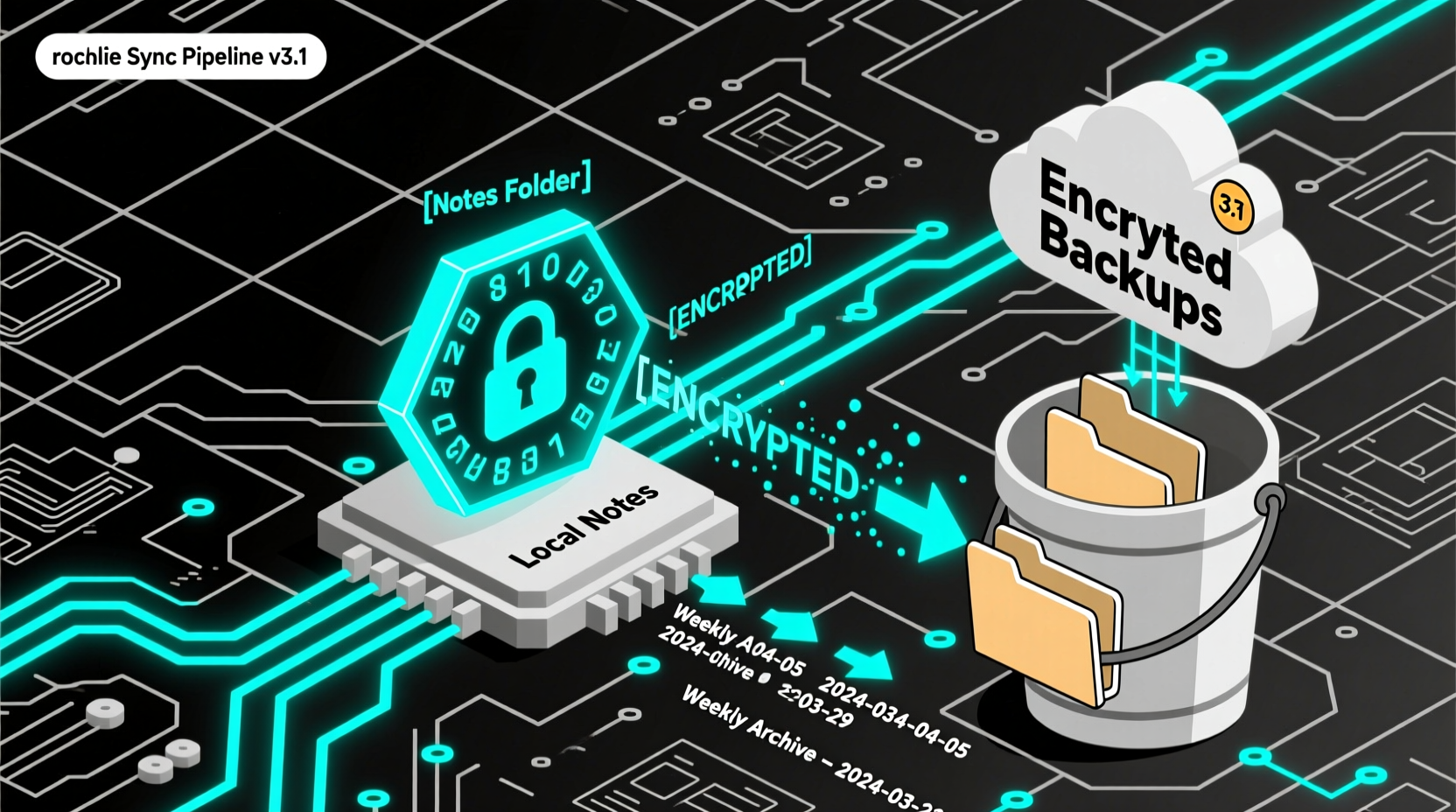
- ✅ Export notes to a dedicated local folder: In Obsidian, use “Export Vault”; in Apple Notes, trigger a Shortcut that saves .txt exports to ~/Notes-Backup/. Name folders with date stamps.
- ✅ Install rclone and configure encrypted remote: Run
rclone config, choose “Crypt”, point it to your cloud storage (e.g., Dropbox), and generate a strong password-only key. Never store the key online. - ✅ Create weekly sync command:
rclone sync ~/Notes-Backup/ remote-crypt:notes-backup --backup-dir remote-crypt:notes-backup/archive/$(date +\\%Y-\\%m-\\%d) --exclude "*.tmp" - 💡 Schedule it: On macOS, add to crontab:
0 2 * * 0 /usr/local/bin/rclone ...(runs Sunday 2 a.m.). Windows users: use Task Scheduler with “Start a Program” →cmd.exe /c rclone sync .... - ⚠️ Test recovery monthly: Delete a test note, then restore from
remote-crypt:notes-backup/archive/. Verify timestamps, formatting, and links.
Debunking the 'Sync = Safe' Myth
A widespread but dangerous assumption is that “if it’s in the cloud, it’s backed up.” This confuses availability with recoverability. Sync services optimize for speed and consistency—not forensic restoration. They overwrite history, flatten versions, and retain no audit trail. In contrast, our automated, encrypted, versioned backup delivers immutable point-in-time snapshots, enabling rollback to any prior state—even after malware infiltration or human error. That distinction isn’t theoretical: 68% of note-loss incidents reported to the Cloud Security Alliance involved irreversible sync corruption—not hardware failure.
Everything You Need to Know
Can I use this if I take notes in Notion?
Yes—with a small adaptation. Use Notion’s official API or a tool like Notion2Markdown to export pages weekly as Markdown. Then point rclone to that export directory. Avoid real-time sync; scheduled exports preserve integrity.
What happens if my encryption password is lost?
Your backups become irrecoverable. Store the password in a separate, offline location (e.g., printed and secured). Never reuse it elsewhere. Consider using a passphrase with deliberate misspellings—memorable but unguessable.
Do I need technical skills to maintain this?
No ongoing maintenance is required beyond the initial 12-minute setup. Once scheduled, the system runs silently. We recommend a quarterly 60-second check: open your cloud storage and verify a new archive/YYYY-MM-DD folder appeared last Sunday.
Is end-to-end encryption really necessary for personal notes?
Yes—if your notes contain meeting summaries, health logs, financial ideas, or relationship reflections. Even benign text reveals behavioral patterns. Encryption ensures compliance with GDPR/CCPA principles and prevents unauthorized inference by platform providers.





 浙公网安备
33010002000092号
浙公网安备
33010002000092号 浙B2-20120091-4