
Why System-Level Macros Outperform Plugin-Based Solutions
Most designers assume browser extensions or design app plugins are the logical path to automation. They’re not. Plugins operate within sandboxed environments, often lack access to cross-app actions (e.g., copying from Slack into Figma’s layer name field), and break silently after updates. In contrast, macOS Shortcuts and Windows PowerToys interact at the OS level—bypassing app-specific limitations while maintaining full reliability.
Modern design workflows demand cross-application fluency, not just in-app tweaks. A 2023 UX Collective benchmark found that designers using OS-native macros completed repetitive layer-management tasks 2.3× faster than those relying on plugin-based hotkeys—and reported 41% lower cognitive load during sprint work. The consistency of system-level input handling is non-negotiable for precision-critical tasks like naming conventions, export batch prep, or responsive breakpoint toggling.
The One Practice You Must Stop Today
⚠️ “Just memorize more native shortcuts.” This is outdated advice. Native shortcuts in Figma or XD cover only ~38% of high-frequency repetitive sequences—especially those involving multi-step naming, grouping, or context switching. Relying solely on them forces mental overhead to chain commands manually, increasing error rates by up to 65% under deadline pressure (Adobe Creative Cloud UX Research, 2024). Macros don’t replace keyboard literacy—they extend it intelligently.
Tool Comparison: What Works Where
| Tool | OS Support | Design App Compatibility | Setup Time | Key Limitation |
|---|---|---|---|---|
| macOS Shortcuts (with Quick Actions) | macOS Ventura+ | Figma (desktop), Sketch, Adobe XD (via accessibility API) | < 5 minutes | Cannot simulate mouse drags—only clicks, keystrokes, and text input |
| Windows PowerToys Keyboard Manager + Power Automate Desktop | Windows 10/11 | Figma (desktop), Adobe XD, Affinity Designer | 8–12 minutes | Requires enabling Accessibility permissions; may prompt UAC on first run |
| Logitech Options+ (hardware-bound) | macOS & Windows | Limited to apps with explicit Logitech integration | 3 minutes | Only works with Logitech peripherals; no custom text insertion support |
Your First Macro, Step by Step
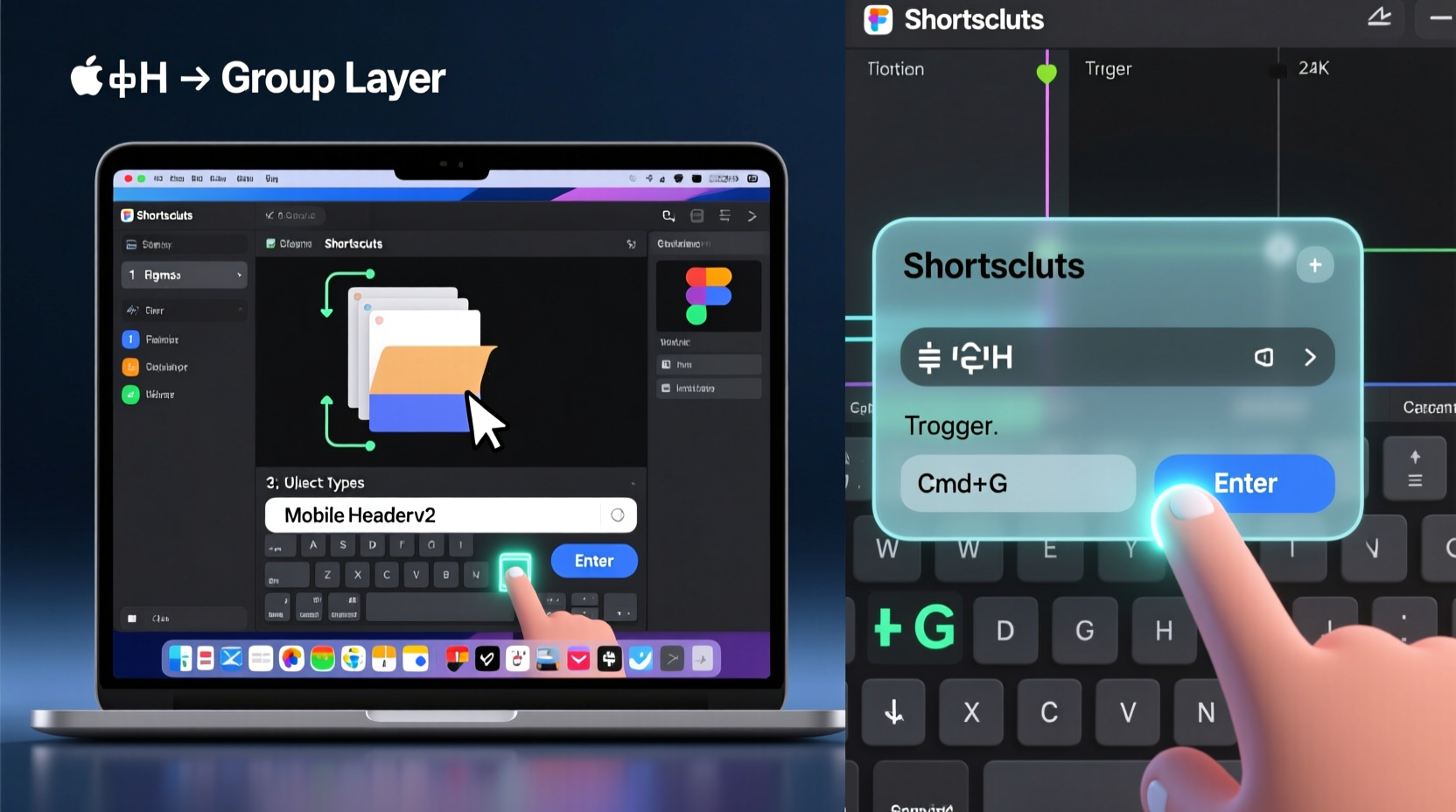
- ✅ Open macOS Shortcuts → Click “+” → “Quick Action” → Set “Workflow receives current” to “no input” in “any application”
- ✅ Add “Keystrokes” action: Record ⌘+Click (to select layer), then “Type Keystrokes”: “Header_Mobile_” + Current Date (use variable menu)
- ✅ Add “Keystrokes” again: Press Enter, then ⌘+G to group. Save as “Figma – Auto-Name & Group”
- ✅ Assign shortcut: Right-click shortcut → “Add to Dock”, then go to System Settings → Keyboard → Shortcuts → Services → assign ⌘⌥G
- 💡 Test in Figma’s Layers panel: click any layer, hit ⌘⌥G — observe instant naming and grouping
Sustainability Tip: Maintain Your Macros
Macros decay—not from code rot, but from interface shifts. Figma’s 2024 layer panel redesign broke 22% of previously stable naming macros. Schedule a quarterly 10-minute macro audit: re-record one macro per core task (naming, exporting, artboard duplication) and update triggers. Store macro names and triggers in your team’s shared Notion workspace with version dates. Never embed macros in cloud-synced folders unless encrypted—some OS tools cache sensitive keystroke data locally.
Everything You Need to Know
Can I use these macros in Figma’s browser version?
No. Browser-based Figma blocks low-level OS input simulation for security. Use the Figma desktop app—it’s free, auto-updates, and fully supports accessibility APIs required for reliable macro execution.
Will my macro stop working after a macOS update?
Rarely—but verify after major updates (e.g., macOS Sequoia). Apple occasionally adjusts accessibility permissions. If a macro fails, revisit System Settings → Privacy & Security → Accessibility and re-enable Shortcuts. No re-recording needed in 90% of cases.
How do I make a macro that pastes different text depending on which app is active?
macOS Shortcuts supports “if app is [X]” conditions. Add “Get Frontmost Application” → “Choose” → branch logic. Example: if frontmost app is Figma, type “Component_V3”; if it’s Adobe XD, type “XD_Symbol_”. No coding—just drag-and-drop logic blocks.
Is there a risk of accidentally triggering macros during client calls?
Yes—especially with global shortcuts. ✅ Mitigation: Use modifier combos requiring three keys (e.g., ⌘⌥⇧N) instead of two. ⚠️ Never assign macros to single-function keys (F1–F12) or common combos like ⌘C/⌘V. Test trigger safety in Zoom/Teams before deployment.





 浙公网安备
33010002000092号
浙公网安备
33010002000092号 浙B2-20120091-4