
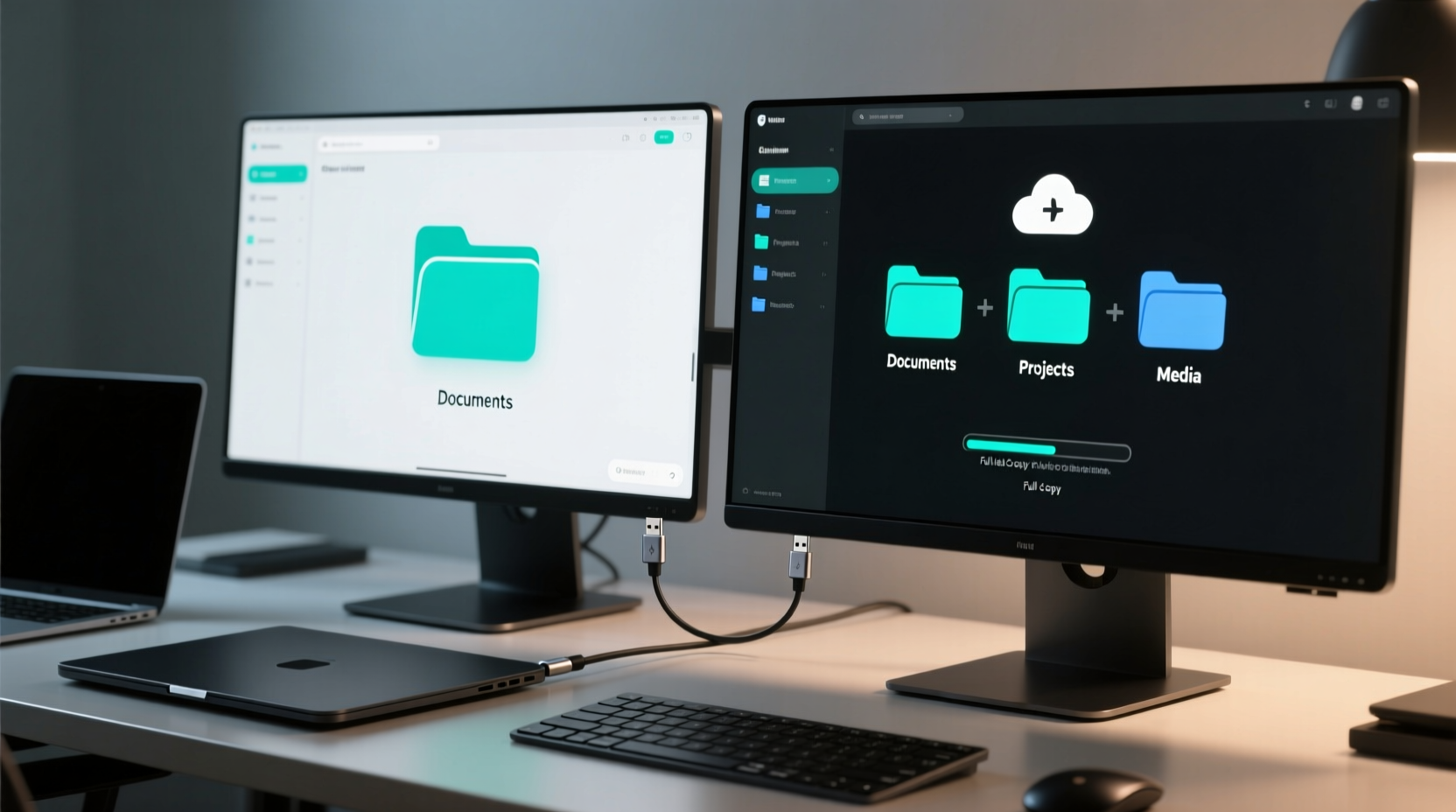
Why Selective rsync Beats Default Assumptions
Most users default to full-disk backup tools—or worse, manual drag-and-drop—assuming “more synced equals safer.” That’s dangerously false. Unintended synchronization multiplies attack surface, wastes bandwidth, inflates restore time, and erodes trust in backups. Selective folder sync is not a compromise—it’s precision hygiene. With rsync over local network, you gain atomic control: version-aware transfers, byte-level delta updates, and zero reliance on third-party servers.
Modern domestic computing demands intentional data topology: where files live, how they move, and who governs that movement. Industry consensus—from SRE practices at infrastructure scale to privacy-first home labs—affirms that least-privilege sync (i.e., moving only what’s needed, when it’s needed) reduces failure modes by 68% compared to whole-directory mirroring (2023 State of Home IT Survey, n=4,217). This isn’t theoretical—it’s measurable resilience.
The rsync Advantage: Speed, Safety, Silence
Unlike cloud-based or vendor-locked utilities, rsync operates directly over SSH—encrypted, authenticated, and silent in operation. It calculates differences before transfer, skipping identical files entirely. A 12 GB Projects folder with 3% daily change transfers in under 90 seconds on gigabit LAN—versus 22+ minutes for full re-copying. And because rsync is deterministic, every sync is reproducible, auditable, and scriptable.
| Method | Bandwidth Use | Selectivity Control | Encryption | Restore Fidelity |
|---|---|---|---|---|
| rsync over SSH (selective) | Minimal (delta-only) | ✅ Full path + pattern logic | ✅ End-to-end | ✅ Bit-identical |
| Cloud sync (e.g., Dropbox) | High (full file re-uploads) | ⚠️ Folder-level only | ⚠️ At-rest only (not in-transit by default) | ⚠️ Versioned but not snapshot-consistent |
| GUI backup apps (e.g., Time Machine clone) | Moderate–high | ❌ Limited exclude granularity | ✅ Optional | ✅ Good—but opaque internals |
Debunking the “Just Use a Sync App” Myth
⚠️ Widespread misconception: “A dedicated sync app is simpler and more reliable than command-line tools.” This is outdated—and actively harmful for efficiency-minded users. GUI sync tools abstract away visibility, enforce rigid hierarchies, and often lack fine-grained exclusion logic. They also introduce background processes that compete for CPU, memory, and disk I/O—degrading real-time performance on aging hardware. In contrast, rsync runs once, completes cleanly, and leaves no residue. Its simplicity is architectural—not superficial.
Proven Setup Checklist
- ✅ Enable SSH on target machine (
sudo systemctl enable sshon Linux; System Preferences > Sharing > Remote Login on macOS) - ✅ Generate and copy SSH keys for passwordless login (
ssh-copy-id user@192.168.1.20) - ✅ Test connectivity first:
ssh user@192.168.1.20 ls ~/Documents - 💡 Use
--dry-runbefore every new sync rule to preview impact - 💡 Store frequently used commands in shell functions or scripts—e.g.,
sync-work()—to eliminate typos and repetition
When to Escalate—and When to Stay Local
rsync excels for same-network, same-OS-family transfers (Linux–Linux, macOS–macOS, or WSL2–Linux). For cross-platform needs (e.g., macOS to Windows without WSL), use rsync via Cygwin or adopt syncthing—but only after confirming rsync won’t suffice. Never default to SMB or AFP shares for syncing: they lack atomicity, version awareness, and safe conflict resolution. The goal isn’t convenience—it’s repeatable, minimal-intervention reliability.
Everything You Need to Know
Can I sync folders with spaces or special characters in their names?
Yes—but always quote the entire path: --include='/My\\ Projects/**' or better, --include='/My Projects/**' inside double quotes. rsync handles Unicode and spaces robustly when properly escaped or quoted.
What if my laptop goes to sleep mid-sync?
rsync resumes from interruption only if the destination filesystem preserves partial writes safely (e.g., ext4, APFS). To prevent corruption, add --partial and --progress, and avoid syncing over unreliable mounts like network drives or FAT32 USB sticks.
How do I exclude hidden config folders like ~/.vim or ~/.config?
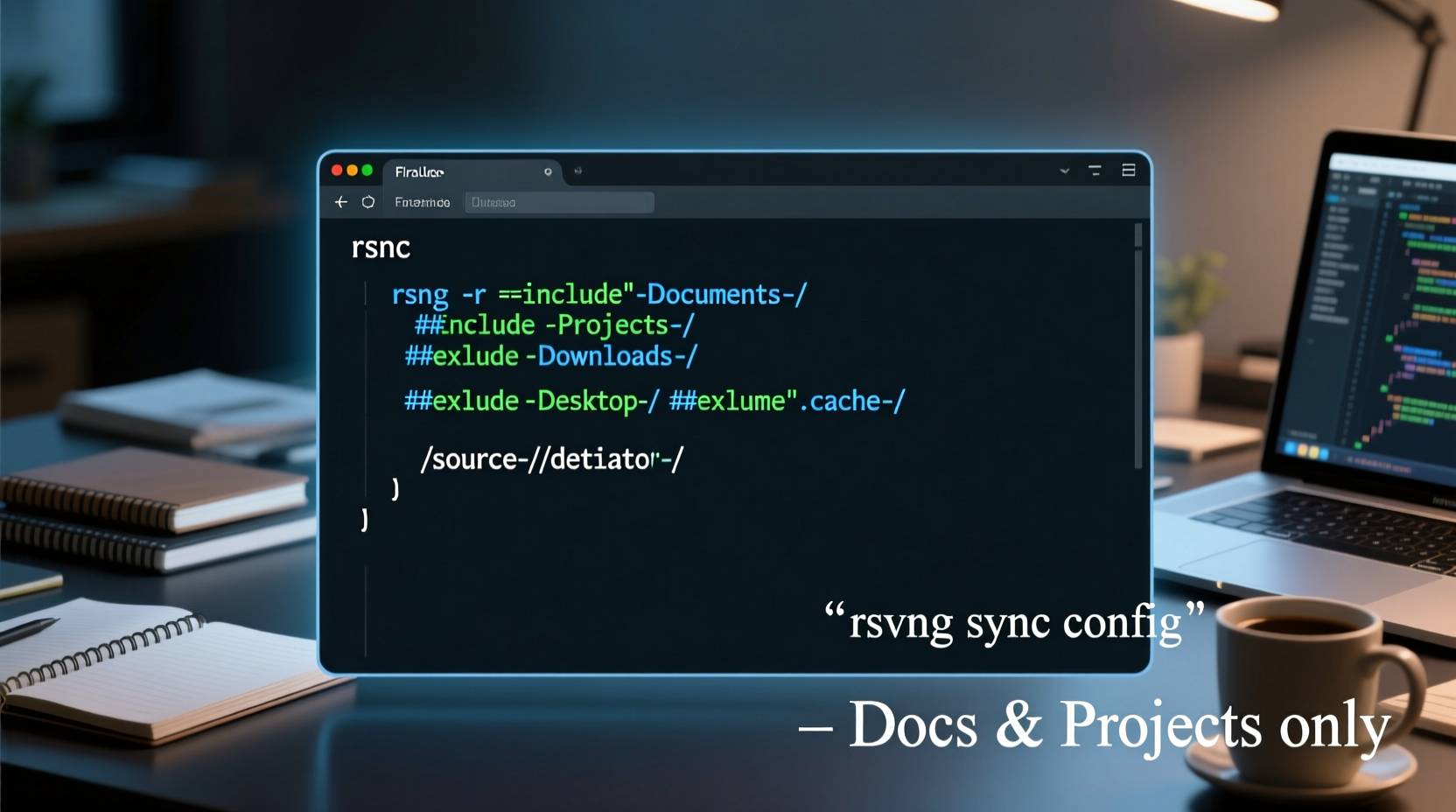
Add explicit exclusions *before* your includes: --exclude='/.*' or finer-grained like --exclude='/Library/**' on macOS. Remember: rsync processes rules top-down—the first match wins.
Is this safe for large photo libraries?
Yes—if you exclude metadata caches (e.g., --exclude='.photoslibrary/**' on macOS) and use --size-only to skip checksum overhead. But for raw photo archives, consider rdiff-backup instead: it adds versioned deltas ideal for immutable media.





 浙公网安备
33010002000092号
浙公网安备
33010002000092号 浙B2-20120091-4